WhatsApp template approval is automatic: you submit a template in WhatsApp Manager or through the API, Meta checks its content and category, and you get a decision within 24 hours. Every template belongs to one of three categories. Marketing is for offers, promotions and anything mixed or vague. Utility is for non-promotional updates about a user's own order, booking or account. Authentication is only for one-time passcodes.
The category matters because Meta prices each one differently, and marketing costs several times more than utility in most countries. Meta also checks your chosen category against the content. Since April 2025 a "utility" template with promotional wording is simply approved as marketing.
Most rejections come from a few fixable mistakes: badly formatted variables, missing samples, duplicate wording and policy issues. This guide covers the rules as of 1 November 2026, then gives nine example templates you can adapt.
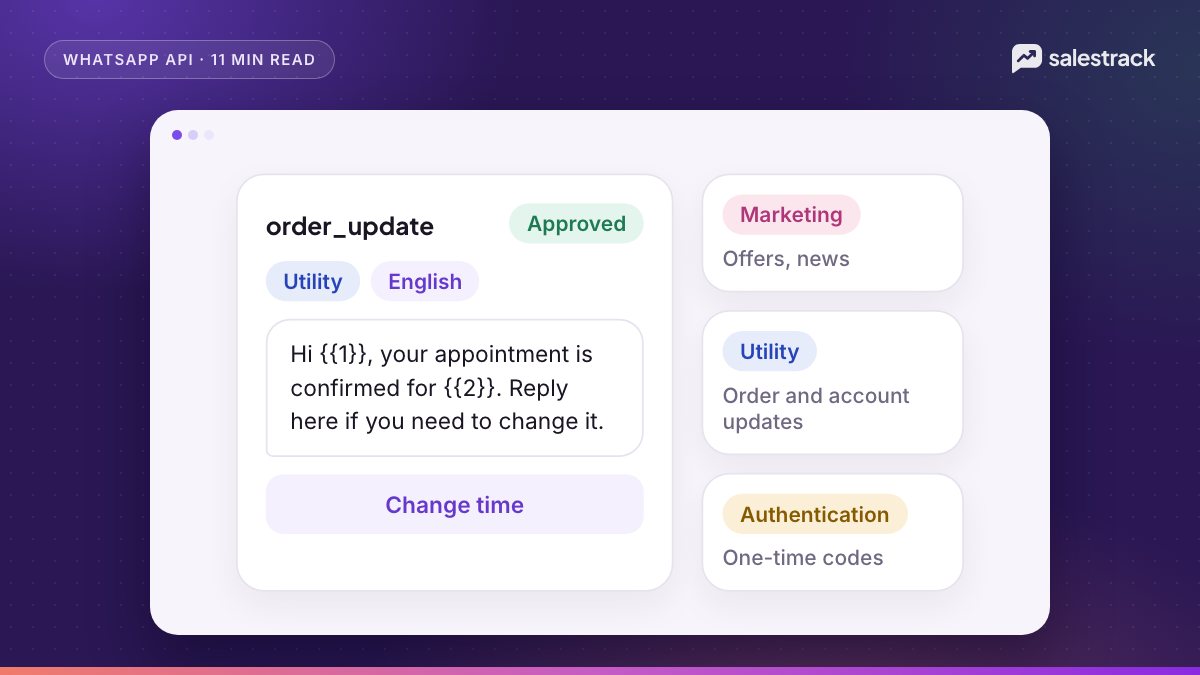
WhatsApp template categories explained
| Category | Use it for | Key rules |
|---|---|---|
| Marketing | Offers, launches, festive sales, re-engagement, event invites, newsletters | The default for anything promotional, mixed or unclear |
| Utility | Booking confirmations, reminders, payment receipts, delivery updates, account alerts, feedback on a specific visit | Must be non-promotional, and either specific to the user's own transaction or request, or essential to them |
| Authentication | One-time passcodes for login or verification | Must use Meta's authentication template with a copy-code or one-tap button. No URLs, media or emojis; parameters up to 15 characters |
Meta's categorisation guidelines make two points that catch most businesses out. First, a template that mixes utility and marketing is marketing. "Your order has shipped. Use code SAVE10 on your next order" is a marketing template. Second, a template with only placeholders or vague text, such as "Hi {{1}}, {{2}}", is marketing, because Meta cannot tell what it is for.
How the category affects price
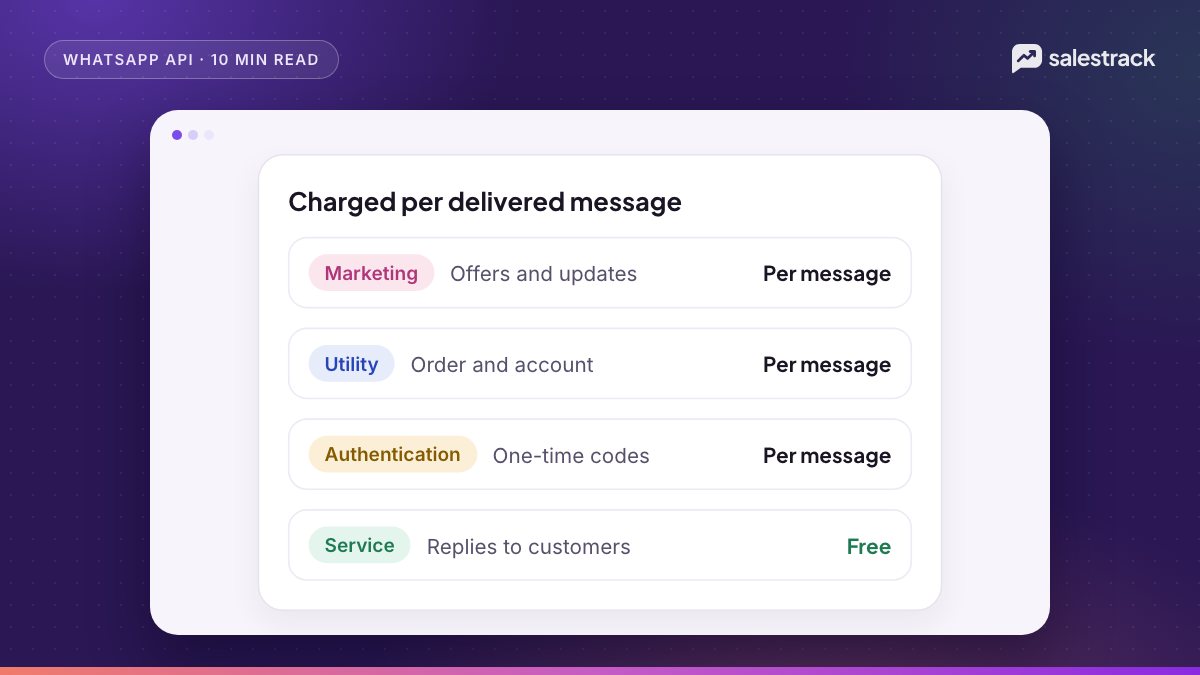
Meta charges per delivered template message, based on the category and the recipient's country. The current rates for every country are on Meta's official rate card; utility and authentication drop further at high monthly volumes. In every market, marketing is the most expensive category, and in India a marketing message costs several times a utility message. That is why getting a genuine reminder approved as utility matters, and why Meta polices the line. Two changes from 1 October 2026 also matter: utility templates sent inside an open customer service window are charged again, and service replies are free only for the first 1,000 per business phone number each month. Everything is free inside a free entry point window opened from a Click-to-WhatsApp ad. Details are in our guides to WhatsApp API pricing and free messages and the service window.
Category checks and recategorisation
Meta checks the category at review and keeps checking after approval:
- At review. Since 9 April 2025, a template submitted as utility that Meta judges to be marketing is approved as marketing. A wrong category can still be rejected with the reason
INCORRECT_CATEGORY. - After approval. Meta reviews approved templates on a recurring basis. Utility templates found to be marketing are switched, normally with one day's notice. Businesses that already have a misuse warning get the change instantly.
- Authentication content. A marketing or utility template that is really an OTP is not moved. After notice, it is rejected on the first day of the next month.
You are told by email, a WhatsApp Manager banner and the template_category_update webhook. If you disagree, request a review in WhatsApp Manager under Business Support, within 60 days. You cannot edit the category of an approved template, so the other option is to create a new one.
The WhatsApp template approval process
- Create the template in WhatsApp Manager or through the API: name (lowercase letters, numbers and underscores), category, language, header, body, footer and buttons.
- Add a sample for every variable. Samples are required and help the reviewer see the real message.
- Submit. Status shows In review. Meta's review page says a decision can take up to 24 hours.
- Approved or rejected. Only APPROVED templates can be sent. If rejected, read the reason, fix and resubmit, or appeal with a sample.
- Edit carefully. Approved templates can be edited up to 10 times in 30 days and once in 24 hours, and every edit is reviewed again (template management).
Limits to plan around: up to 100 new templates per hour per WhatsApp Business account, and 250 templates in total if your business portfolio is unverified (up to 6,000 once verified with an approved display name). Each language version counts as a separate template, and Meta does not translate for you.
Common rejection reasons and variable rules
Variable mistakes
- Braces that do not match. Write
{{1}}or a named parameter like{{first_name}}(lowercase and underscores only). - Special characters such as #, $ or % inside a parameter.
- Numbers out of sequence, for example {{1}}, {{2}}, {{4}}.
- A template that starts or ends with a variable. Put text before the first and after the last.
- Too many variables for the length of the message. Add real words around them.
- No sample values.
Content and policy
- The body and footer match an existing template word for word.
- Asking for full card numbers, bank account numbers or national ID numbers. Asking for the last four digits is allowed.
- Threatening legal action or public shaming, for example in payment reminders.
- Prices, fees and offers that break the WhatsApp Commerce Policy.
- Utility wording with a promotion inside (approved as marketing rather than rejected).
Component limits
From Meta's components reference: text header up to 60 characters with one variable; body up to 1,024 characters; footer up to 60 characters; up to 10 buttons in total, with at most 2 URL buttons and 1 phone button; button text up to 25 characters. A URL button can hold one variable, at the end of the URL.
Template quality, pacing and pausing
Once approved, each template earns a quality rating from usage, feedback and read rates: High (GREEN), Medium (YELLOW), Low (RED), or Quality pending (UNKNOWN) for new templates. Medium and Low mean several people blocked or reported it, or few people read it.
When a template reaches the lowest rating it is paused: 3 hours the first time, 6 hours the second, and disabled the third time. Sends to a paused template fail with error 132015. New marketing templates, and those not rated GREEN, can also be paced, meaning Meta holds part of the campaign until early feedback arrives. Our broadcast guidelines cover pacing and messaging limits in detail.
Example templates that follow the rules
These are examples written for this article, not Meta-approved templates. Approval depends on your exact content, so adjust the wording to your business and supply real samples.
Utility examples
Example 1: appointment confirmation (utility). "Hi {{1}}, your appointment at Bright Smile Dental is confirmed for {{2}} at {{3}}. Reply 1 to confirm or 2 to reschedule." Quick-reply buttons: Confirm, Reschedule.
Example 2: day-before reminder (utility). "Reminder: your site visit to {{1}} is tomorrow at {{2}}. Our team member {{3}} will meet you at the sales office." Button: Get directions (URL).
Example 3: payment receipt (utility). "We received your payment of {{1}} for invoice {{2}} on {{3}}. Thank you. Keep this message for your records."
Example 4: lead acknowledgement after a form (utility). "Hi {{1}}, thanks for your enquiry about {{2}}. {{3}} from our team will call you today. Reply here if you have questions before then."
Example 5: visit feedback (utility). "Hi {{1}}, how was your visit to our {{2}} branch on {{3}}? Tap a button to rate it." Buttons: Good, Okay, Poor.
Marketing examples
Example 6: festive offer (marketing). "Hi {{1}}, our Diwali offer is live: {{2}} off teeth whitening until {{3}}. Book a slot below." Buttons: Book now (URL), Stop offers (quick reply).
Example 7: course batch opening (marketing). "Hi {{1}}, admissions for our {{2}} batch starting {{3}} are open. Seats are limited. Reply YES for the fee details." Button: Stop offers.
Example 8: re-engaging an old enquiry (marketing). "Hi {{1}}, you asked about {{2}} a while ago. New units with possession in {{3}} are now available. Want the price list?" Buttons: Send price list, Stop offers.
Authentication example
Example 9: login code (authentication). Built from Meta's authentication template: "{{1}} is your verification code. For your security, do not share this code." Copy-code button, optional expiry note. No links or emojis.
Building templates in salestrack
salestrack CRM by Dentobees includes a guided template builder inside broadcasts and templates. It walks you through category, header, body, variables and buttons, shows a phone preview, asks for sample values and flags common rejection reasons before you submit to Meta. Variables fill from lead fields such as name, product and date. For ready-made starting points, browse the salestrack template library, and use the glossary if a WhatsApp term is unfamiliar.
FAQ
How long does WhatsApp template approval take?
Meta reviews templates automatically and says a decision can take up to 24 hours. Appeals are also decided within 24 hours.
What are the three WhatsApp template categories?
Marketing, utility and authentication. Utility covers non-promotional updates tied to a user's own order, account or request. Authentication is only for one-time passcodes. Everything else, including mixed or unclear content, is marketing.
Why was my utility template approved as marketing?
Since 9 April 2025, if you submit a template as utility and Meta decides the content is promotional, it approves it as marketing instead of rejecting it. Any offer, upsell or vague wording makes a template marketing.
Can I change the category of an approved template?
No. Meta does not let you edit the category of an approved template. Create a new template, or request a review in WhatsApp Manager within 60 days if you think Meta categorised it wrongly.
Why was my WhatsApp template paused?
A template is paused when its quality rating falls to the lowest level because users blocked, reported or ignored it. The first pause lasts 3 hours, the second 6 hours, and the third time the template is disabled.
How many times can I edit an approved WhatsApp template?
Up to 10 times in a 30-day window, and only once in a 24-hour window. Each edit goes through review again.
Sources
Facts in this article were checked against these sources on 1 November 2026. WhatsApp and Meta change their rules and prices often, so check the source before you rely on a number.
- Template categorization — Meta for Developers
- Templates overview — Meta for Developers
- Template review — Meta for Developers
- Template components — Meta for Developers
- Template management — Meta for Developers
- Template quality rating — Meta for Developers
- Template pausing — Meta for Developers
- Pricing on the WhatsApp Business Platform and rate cards (effective 1 October 2026) — Meta for Developers