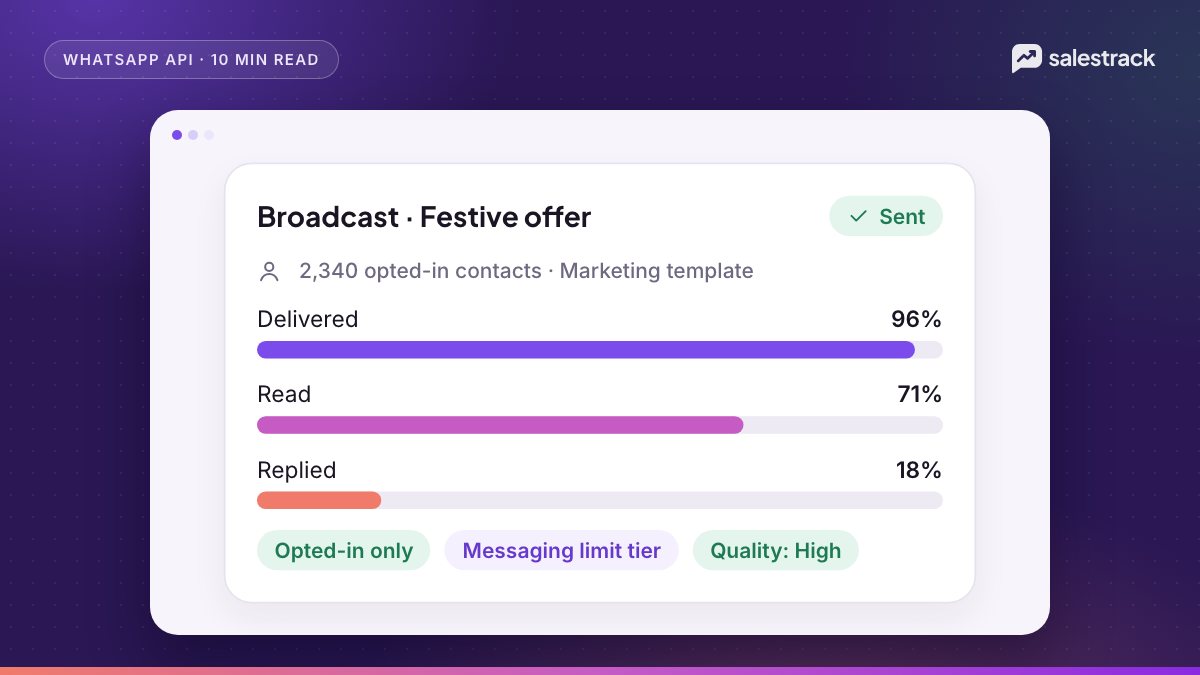
WhatsApp broadcast guidelines on the Business API come down to five rules. Message only people who opted in to hear from your business by name. Start every business-initiated message with an approved template. Stay inside your messaging limit, which since October 2025 is shared across your whole business portfolio and starts at 250 unique users per 24 hours. Keep blocks and reports low so your quality holds. And stop marketing to anyone who opts out.
Meta also controls delivery from its side. New or low-rated templates can be paced, large first campaigns can be batched, and each person can only receive a limited number of marketing messages from all businesses combined. None of this is a ban. It is how WhatsApp protects its users, and a campaign planned around it lands better.
Below is what each rule means in practice, with the numbers taken from Meta's own documentation as of 1 November 2026, and a checklist to run before you press send.
WhatsApp broadcast guidelines at a glance
| Rule | What Meta says | What you do |
|---|---|---|
| Opt-in | Contact people only after they give their number and agree to hear from your business | Collect opt-in that names your business, and keep a record of it |
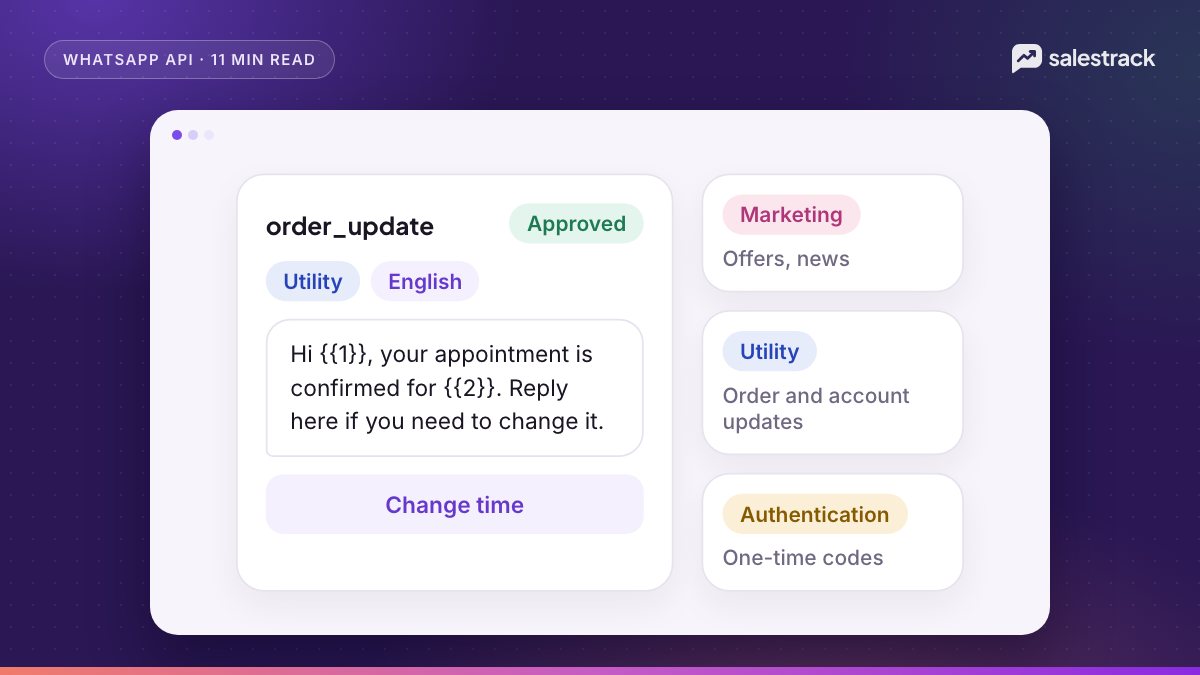
| Templates | Conversations you start must use an approved template | Get templates approved in the right category before the campaign date |
| Messaging limit | Unique users reached outside a service window per moving 24 hours, set per business portfolio | Check your tier and split big lists across days |
| Quality | Blocks, reports and low read rates lower quality and can lead to rate limits | Send fewer, more relevant messages to tighter segments |
| Opt-out | Respect every request to stop, on or off WhatsApp | Suppress opted-out contacts automatically |
Opt-in requirements under the Business Messaging Policy
The WhatsApp Business Messaging Policy allows you to contact someone on WhatsApp only if they gave you their phone number and you received opt-in permission confirming they want to receive later messages from you. Since the November 2024 policy update, that opt-in can be general rather than WhatsApp-specific, as long as you follow local law.
Meta's opt-in guide adds two hard requirements. You must clearly state that the person is opting in to receive messages, and you must clearly state your business name. Website forms, SMS, IVR phone flows and signed paper forms are all accepted methods.
What good opt-in looks like
- A checkbox on your lead form: "Send me appointment updates and offers from Bright Smile Dental on WhatsApp." Not pre-ticked.
- A line on the walk-in register or admission form that the customer signs.
- Separate consent for offers and for service updates, which Meta recommends. People who agreed only to order updates are the ones most likely to block you over a promotion.
How WhatsApp messaging limits work in 2026
Your messaging limit is the number of unique WhatsApp users you can message outside a customer service window in a moving 24-hour period. Replies to people who wrote to you in the last 24 hours do not count. Re-messaging the same person within the period also does not use up a second slot.
On 7 October 2025 Meta moved limits from individual phone numbers to the business portfolio. Every number in the portfolio now shares one limit, and a new number inherits the portfolio's limit straight away. The flip side is that one number running a large campaign can use the whole day's allowance for every other number.
| Level | Unique users per 24 hours | How you get there |
|---|---|---|
| Starting limit | 250 | Every new business portfolio |
| Level 2 | 2,000 | Complete a scaling path (below) |
| Level 3 | 10,000 | Automatic scaling |
| Level 4 | 100,000 | Automatic scaling |
| Top level | Unlimited | Automatic scaling |
Getting from 250 to 2,000
Per Meta's messaging limits documentation, you complete one of three scaling paths: verify your business, have the partner who onboarded you verify it, or deliver 2,000 messages outside service windows to unique users within 30 days using high-quality templates. Meta then reviews your message quality and approves or denies the increase. Business verification is usually the quickest path; see our guide to WhatsApp business verification.
Scaling beyond 2,000
From 2,000 upwards, Meta raises your limit by one level within 6 hours when two conditions are true: you are sending high-quality messages across all your numbers and templates, and you used at least half of your current limit in the last 7 days. In practice, a business on 2,000 needs to reach at least 1,000 unique users in a week before it moves to 10,000.
Quality rating, blocks and reports
Quality is the signal behind almost every limit. The policy says WhatsApp may limit how many messages a business can send based on user feedback, and may restrict or remove access if a business gets significant negative feedback. People can block you, report you, or tell WhatsApp they no longer want marketing messages from you.
Two ratings matter:
- Phone number quality, shown in WhatsApp Manager. Since the October 2025 change, a drop in quality no longer lowers your messaging limit by itself, and the old "Flagged" state is gone. But you need high-quality messages to scale, and Meta's opt-in guide says its systems will rate limit businesses whose quality stays low for a sustained period.
- Template quality, rated GREEN, YELLOW, RED or UNKNOWN. YELLOW and RED mean negative feedback from several users or low read rates. A template that hits the lowest rating is paused, for 3 hours the first time, 6 hours the second time, and disabled the third time.
If sends start failing with error 131048, Meta's error reference says the number is restricted because messages were blocked or flagged as spam. Stop the campaign and check quality before sending more.
What usually causes blocks: messaging people who forgot they ever enquired, sending the same offer three times in a week, and long promotional text with no clear reason to read it. A short, specific message to a recent enquirer rarely gets reported.
Template pacing and per-user marketing limits
Template pacing
With template pacing, Meta sends the first part of a campaign normally, then holds the rest while early feedback comes in. It applies to marketing templates that are new, recently unpaused or not rated GREEN, and to utility templates in the 7 days after one of your utility templates was paused. If feedback is good, held messages go out. If it is bad, the template is paused and the held messages fail with code 132015. The API marks held messages as held_for_quality_assessment.
Business portfolio pacing
Portfolio pacing applies to portfolios that have sent fewer than 500,000 template messages in the last 365 days, and to portfolios under review for suspicious activity. Large sends are delivered in batches while Meta watches feedback. If feedback suggests abuse, remaining messages are dropped with code 135000 and template sending is blocked during review. Most small and mid-size businesses fall under this, so a first big campaign may take longer to deliver than you expect.
Per-user marketing limits
WhatsApp also caps how many marketing templates one person receives from all businesses combined. Meta's per-user limit page says the cap adapts to each user's recent read rate and how many marketing messages they already get. When it applies, the message fails with error 131049. Meta asks you to wait at least 24 hours before retrying that person, because fast retries can block further attempts to them for up to 24 hours.
Opt-out handling
The policy requires you to respect every request to block, stop or opt out, whether it reaches you on WhatsApp or anywhere else. Build three things into your process:
- An easy way out in every marketing template. A quick-reply button such as "Stop offers" or a line like "Reply STOP to stop offers" both work. Meta recommends clear opt-out instructions by message category.
- Automatic suppression. When someone taps the button or writes "stop", tag them and exclude them from every future marketing segment. Do not rely on a salesperson remembering.
- Respect WhatsApp's own setting. Users can turn off marketing messages from your business inside WhatsApp. Sends to them fail with error 131050, and the
user_preferenceswebhook tells you when it changes. Do not retry those numbers.
Keep utility messages flowing for people who opted out of offers. An appointment reminder they asked for is still allowed. A discount dressed up as a reminder is not.
Pre-send checklist for every WhatsApp broadcast
- Every contact in the segment opted in to messages from your business, and you can show where.
- Opted-out contacts, past blockers and US numbers (for marketing) are removed.
- The template is approved, in the right category, and rated GREEN or UNKNOWN. See our guide to template categories and approval.
- Audience size is below your portfolio messaging limit after counting other numbers' sends today.
- The message is personalised, short, and gives a clear reason to reply.
- The template has an opt-out button or line.
- You have checked the cost against Meta's rate for each country. Our WhatsApp API pricing guide has current rates.
- Someone is ready to answer replies within minutes of the send.
- You are sending at a sensible local time, not late at night.
- You will watch delivered, read and failed counts in the first hour, and stop if failures or blocks jump.
Running broadcasts in salestrack
salestrack CRM by Dentobees runs WhatsApp broadcasts on the official WhatsApp Business API. Broadcasts go only to opted-in contacts, in segments that update themselves by stage, source, tag or branch. Opted-out contacts are excluded automatically and "Stop promotions" requests are respected. A guided template builder flags common rejection reasons before you submit to Meta, and you see the wallet cost before anything is sent. After the send you get delivered, read, replied and failed counts with retry, and replies land in the shared inbox with an owner. Broadcasts are on the Starter and Growth plans; see pricing.
FAQ
What is the WhatsApp messaging limit for a new business?
A new business portfolio starts at 250. That is the number of unique WhatsApp users you can message outside a customer service window in a moving 24-hour period, shared across all phone numbers in the portfolio.
How do I increase my WhatsApp messaging limit?
Reach 2,000 by verifying your business (or having your partner verify it) or by delivering 2,000 messages outside service windows to unique users in 30 days with high-quality templates. After that, Meta raises the limit one level within 6 hours when you send high-quality messages and have used at least half your current limit in the last 7 days.
Is the WhatsApp messaging limit per phone number?
No. Since 7 October 2025 Meta calculates messaging limits at the business portfolio level. All phone numbers in the portfolio share one limit, so one busy number can use up the whole allowance.
Do replies to customers count toward the messaging limit?
No. The limit counts unique users you message outside a customer service window. Replies inside the 24-hour window after a customer writes to you do not count.
Why did my WhatsApp marketing message fail with error 131049?
Error 131049 means WhatsApp held back the marketing template to protect engagement, because that user has already received enough marketing messages from businesses. Wait at least 24 hours before trying that user again.
Can I send WhatsApp marketing broadcasts to US numbers?
Not at the moment. Meta's documentation says WhatsApp does not currently deliver marketing template messages to users with United States phone numbers, and such sends return an error.
Sources
Facts in this article were checked against these sources on 1 November 2026. WhatsApp and Meta change their rules and prices often, so check the source before you rely on a number.
- WhatsApp Business Messaging Policy (last updated 23 September 2026)
- Get opt-in for WhatsApp — Meta for Developers
- Messaging limits — Meta for Developers
- Messaging limit changes (October 2025) — Meta for Developers
- Per-user marketing template message limits — Meta for Developers
- Template pacing — Meta for Developers
- Business portfolio pacing — Meta for Developers
- Template quality rating — Meta for Developers
- Error codes — Meta for Developers