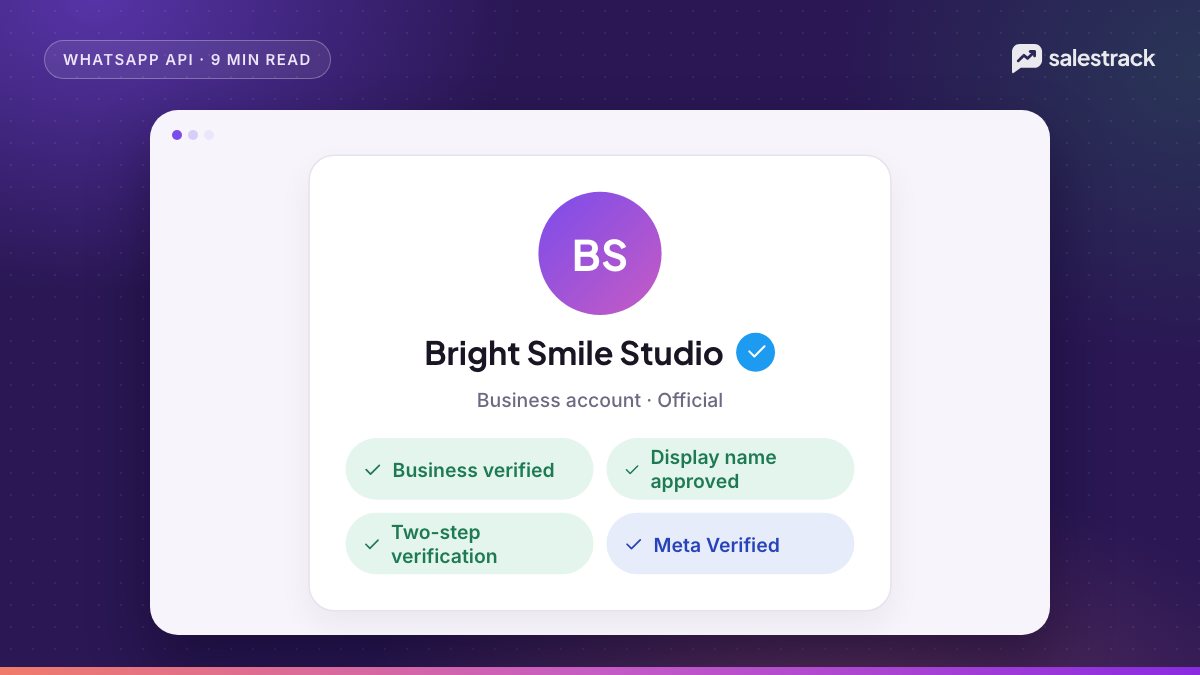
WhatsApp Business verification usually means one of three separate steps, and mixing them up is the most common reason businesses get stuck. Meta business verification confirms your legal business in Meta Business Suite. Display name approval confirms the name shown on your WhatsApp number. The blue tick is a badge on top of both: on the API it is called Official Business Account (OBA) status, and on the WhatsApp Business app it comes with Meta's paid verified plans.
For most businesses on the WhatsApp Business API, business verification is the step that matters. It is one of the ways to lift your messaging limit from 250 to 2,000 unique recipients a day, it raises your template allowance, and it is a requirement for the blue tick. The blue tick itself is optional, free to request on the API, and granted at Meta's discretion.
Below are the exact steps, the documents Meta expects, the display name rules and the current state of the blue tick as of November 2026, checked against Meta's own documentation.
Three kinds of WhatsApp verification, side by side
| Meta business verification | Display name approval | Blue tick | |
|---|---|---|---|
| What it checks | Your legal business name, address, phone and website | That the name on your number follows Meta's naming rules | That the business is an authentic, notable brand |
| Where you do it | Security Center in Meta Business Suite | Automatic, or when you edit the name in WhatsApp Manager | WhatsApp Manager (API) or the app's verified subscription |
| Cost | Free | Free | Free to request on the API; paid plan on the app |
| What changes | Higher messaging limits and template allowance | Name can appear at the top of chats and in the chat list | Blue checkmark next to your name; API numbers become searchable |
How to complete Meta business verification
Business verification is done once for your Meta business portfolio, not per WhatsApp number. You need full admin control of the portfolio. Meta's help article lays out the flow:
- Open Security Center in Meta Business Suite and click Start verification. If you cannot see Security Center, you probably do not have full control of the portfolio.
- Enter your business details: legal business name, address, phone number and website. They must exactly match your legal entity. The website must load and use HTTPS.
- Pick your business from the list if Meta finds a match. If not, choose that your business is not listed, and upload official documents such as a business licence or certificate of incorporation.
- Confirm your connection to the business by email, phone call, text, WhatsApp message or domain verification (a meta tag or DNS record on your website).
- Wait for review and watch for notifications. If Meta asks for more information, Meta's troubleshooting page says you have one week to provide it before you must start again.
Documents that usually work
Meta wants documents that show your exact legal business name, and where asked, the same address or phone you entered. Requirements vary by country. In India, businesses typically use a GST registration certificate, certificate of incorporation, Udyam (MSME) registration, shop and establishment licence or a utility bill in the business name. In the UAE and other Gulf markets, a trade licence is the usual choice.
How long it takes
Meta does not publish a fixed turnaround time. When your details auto-match a public record, it can finish quickly. When documents go to manual review, expect it to take longer, and budget for at least one round of follow-up questions. Start verification on day one, while you build templates and connect your number, so it does not hold up your launch.
How verification affects messaging limits
This is the practical reason to verify. Meta's messaging limits cap how many unique people you can reach with business-initiated messages (templates sent outside a customer service window) in a moving 24-hour period. Since 7 October 2025 the limit is set per business portfolio and shared by all its numbers.
| Limit | How you get there |
|---|---|
| 250 | Starting limit for a new business portfolio |
| 2,000 | Verify your business, have your partner verify it, or send 2,000 high-quality template messages to unique users in 30 days |
| 10,000 | Automatic scaling |
| 100,000 | Automatic scaling |
| Unlimited | Automatic scaling |
After you reach 2,000, Meta raises the limit by one level within 6 hours if your messages are high quality and you used at least half of your current limit in the last 7 days. Replies inside the 24-hour customer service window do not count against this limit.
Verification also lifts your template allowance. Meta's business account documentation says unverified portfolios are limited to 250 templates per Messaging account, while verified portfolios with an approved display name can have up to 6,000.
Display name approval rules
You set a display name when you register a number. According to Meta's display name documentation, the name is reviewed automatically against the display name guidelines when you reach a higher messaging limit. Once approved, it can appear at the top of chats and in the chat list, unless the customer has saved you under a different name.
In practice, the guidelines come down to a few rules:
- The name should clearly relate to your business, and match your website, signage or registration.
- Use normal capitalisation. Avoid all caps unless your brand is an acronym.
- Do not use a person's name alone, generic words alone (for example "Dental Clinic"), or extra punctuation and emoji.
- A location or branch suffix is fine where it helps, for example "Sharma Dental Care Kochi".
You can change the display name 10 times in 30 days. After a change is approved, you must re-register the number within 14 days, or the new name has to be reviewed again. If your number already has OBA status, you need Meta support to change the name. If a name is rejected, edit it to meet the guidelines or appeal through developer support.
The WhatsApp blue tick: OBA vs Meta Verified
Many guides still call it the WhatsApp green tick. Meta's current Official Business Account documentation describes a blue checkmark beside the business name. There are two routes to a badge, depending on whether you use the API or the app.
Official Business Account (API numbers)
To be eligible for OBA status, Meta requires that:
- The business follows the WhatsApp Business Messaging Policy.
- The business has been on the WhatsApp Business Platform for at least 30 days.
- The business portfolio has completed business verification.
- The number has two-step verification switched on.
- The display name is approved.
You request it in WhatsApp Manager under Phone numbers, Profile, Official business account, or through the API. Requesting is free. Meta does not grant OBA to employees, test accounts or WhatsApp Business app numbers. If you are rejected, you can apply again after 30 days. Meeting the checklist does not guarantee approval, because Meta reviews each request against its own authenticity criteria. A consistent brand name across your website, social profiles and listings makes your case easier to judge.
OBA has two concrete benefits beyond trust. Meta says numbers without OBA do not appear when users search for them inside WhatsApp unless the user has saved the number. And OBA is now a requirement for some newer features, such as the WhatsApp Groups API.
Meta Verified (WhatsApp Business app)
For the WhatsApp Business app, the badge comes through a paid Meta subscription. WhatsApp began rolling out Meta Verified for businesses in Brazil, India, Indonesia and Colombia in June 2024, offering a verified badge, impersonation protection and extra support. In September 2026 Meta announced Meta One business plans, starting at US$14.99 a month for the Essential tier, which include a verified badge and impersonation protection, pending successful verification. Meta says plans, pricing and availability vary by region, app and account. The reliable check is the Meta Verified or subscription option inside your own WhatsApp Business app.
A practical verification checklist
- Make sure your website is live on HTTPS and shows the same business name and address as your registration documents.
- Create or tidy your Meta business portfolio, with at least two admins.
- Start business verification in Security Center with your exact legal name.
- Connect your WhatsApp number with a display name that matches your brand.
- Turn on two-step verification for the number.
- Fill in the business profile: logo, description, address, email and website.
- Send only opted-in, useful templates so quality stays high and limits scale.
- After 30 days on the platform, request OBA if you are a recognised brand.
Getting help with verification in salestrack
salestrack runs on the official WhatsApp Business API and connects numbers through Meta's embedded signup. If you would rather not do the Meta paperwork alone, the optional $100 guided setup on the pricing page includes help with Meta business verification, connecting your WhatsApp numbers, setting up assignment rules and training your team. Once you are live, the broadcast tools check templates before submission and show the cost before you send, which helps keep the message quality that drives limit increases.
FAQ
Is WhatsApp Business verification the same as the blue tick?
No. Meta business verification confirms your legal business details in Meta Business Suite. The blue tick on the API is Official Business Account status, which you can only request after business verification, display name approval and two-step verification are in place.
Is the WhatsApp green tick still available?
Meta's current documentation describes Official Business Accounts as having a blue checkmark next to the name. Guides that talk about a green tick describe the older badge design.
How much does the WhatsApp blue tick cost?
Requesting Official Business Account status for an API number is free, but approval is not guaranteed. On the WhatsApp Business app, the badge comes through Meta's paid subscription plans where they are offered to your account.
Do I need business verification to use the WhatsApp Business API?
No. You can start sending without it, but a new portfolio is limited to 250 unique recipients for business-initiated messages in 24 hours. Verification is one way to move to 2,000 and unlock automatic scaling.
What if my Official Business Account request is rejected?
Meta lets you submit a new request after 30 days. In the meantime you can still fill out your business profile with logo, description, email and website.
Which documents do I need for Meta business verification?
Documents that show your exact legal business name, and where asked your address or phone number. In India that is typically a GST certificate, certificate of incorporation, Udyam registration or similar registration document, matching the name you enter.
Sources
Facts in this article were checked against these sources on 1 November 2026. WhatsApp and Meta change their rules and prices often, so check the source before you rely on a number.
- Official Business Accounts — Meta for Developers
- Display names — Meta for Developers
- Messaging limits — Meta for Developers
- Verify your business in Meta Business Suite — Meta Business Help Center
- Troubleshoot why your business can't be verified — Meta Business Help Center
- Display name guidelines for the WhatsApp Business Platform — Meta Business Help Center
- Business accounts and template limits — Meta for Developers
- Introducing AI tools, Meta Verified and more for businesses on WhatsApp — WhatsApp Blog
- Introducing Meta One — Meta Newsroom, September 2026