If your enquiries already collect in a Google Sheet, for example from a Google Form or a tool that writes to a sheet, connect it to salestrack. Every new row becomes a lead on the Leads page and is shared out by your assignment rules. You set it up once, inside a side panel, without leaving the Integrations page.
Before you start
- Use a Google account that can open the sheet.
- Put column names in the first row, and keep one lead per row.
- The sheet needs a name column and a phone column. Both are required.
- You need the Owner or Admin role.
Steps
- Open Integrations. In the left menu, under Setup, click Integrations. Under Bring in leads, find Google Sheet and click Connect.
- Sign in with Google. Choose the Google account that has the sheet.
- Pick the sheet. Choose the spreadsheet, then the tab your leads are on.
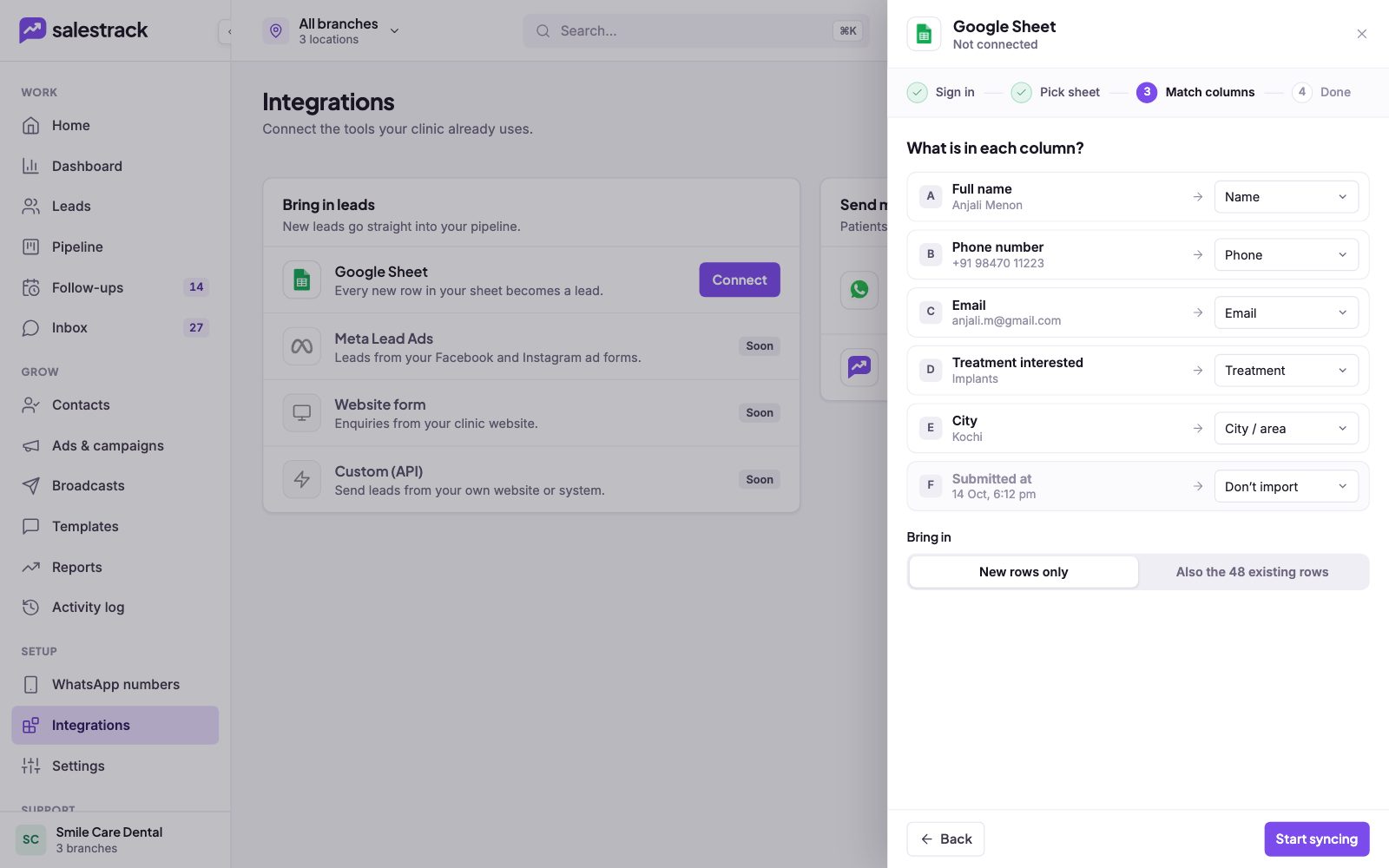
- Match columns. Under What is in each column?, salestrack shows each column with a sample value and suggests a match. Check each one. Options are Name, Phone, Email, Treatment, City / area, Notes and Don't import.
- Choose what to bring in. Under Bring in, pick New rows only to start from today, or Also the existing rows to bring in the leads already in the sheet. The button shows how many rows there are.
- Start syncing. Click Start syncing. You see a Done step when the sheet is connected.
Check and manage the sync
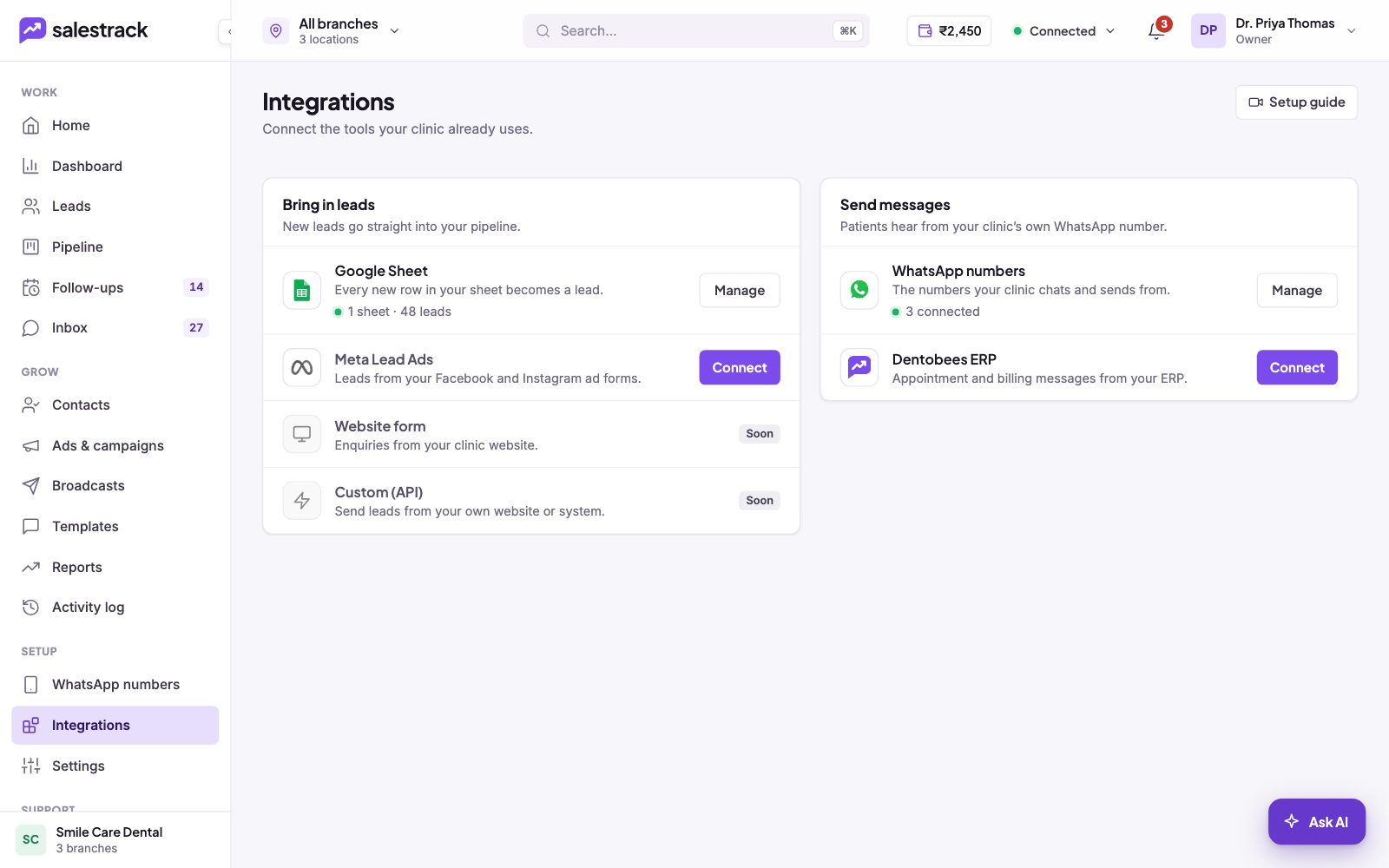
Once connected, the Google Sheet card shows how many sheets are connected and how many leads they brought in. Click Manage to see each sheet as Live or Paused, and to Edit columns, Pause or Disconnect it. Disconnecting asks you to confirm.
Leads from a sheet show a Sheet sync tag on the Leads page, so your team knows where they came from.
If something goes wrong
- New rows are not coming in. Open Manage and check the sheet says Live, not Paused. Also check the connection status in the top bar.
- Fields land in the wrong place. Click Manage, then Edit columns, and fix the match.
- I renamed or moved columns in the sheet. Edit columns again so salestrack reads them correctly.
Need help? Message us on WhatsApp at +91 80860 14345 or email harshad@dentobees.com.
Read next
- Import leads from Excel or CSV · Help guide
- Connect Meta lead ads · Help guide
- Set up lead assignment rules · Help guide
- Integrations
- Facebook lead ads to WhatsApp
Still stuck? Ask us on WhatsApp.Real people reply Monday to Saturday, 9 am to 9 pm IST. Tell us what you were trying to do and we will send the answer or the right guide.Message supportEmail us