If your leads live in a spreadsheet today, import them once so your whole team works from one list. Every import also creates a contact list, which you can use later for broadcasts.
Before you start
- Save your file as Excel or CSV, with one lead per row and column names in the first row.
- Every row needs a name and a phone number. These two columns are required.
- Add the country code to phone numbers (for example +91) so WhatsApp messages reach the right person.
- Your role needs access to Contacts to import.
Steps
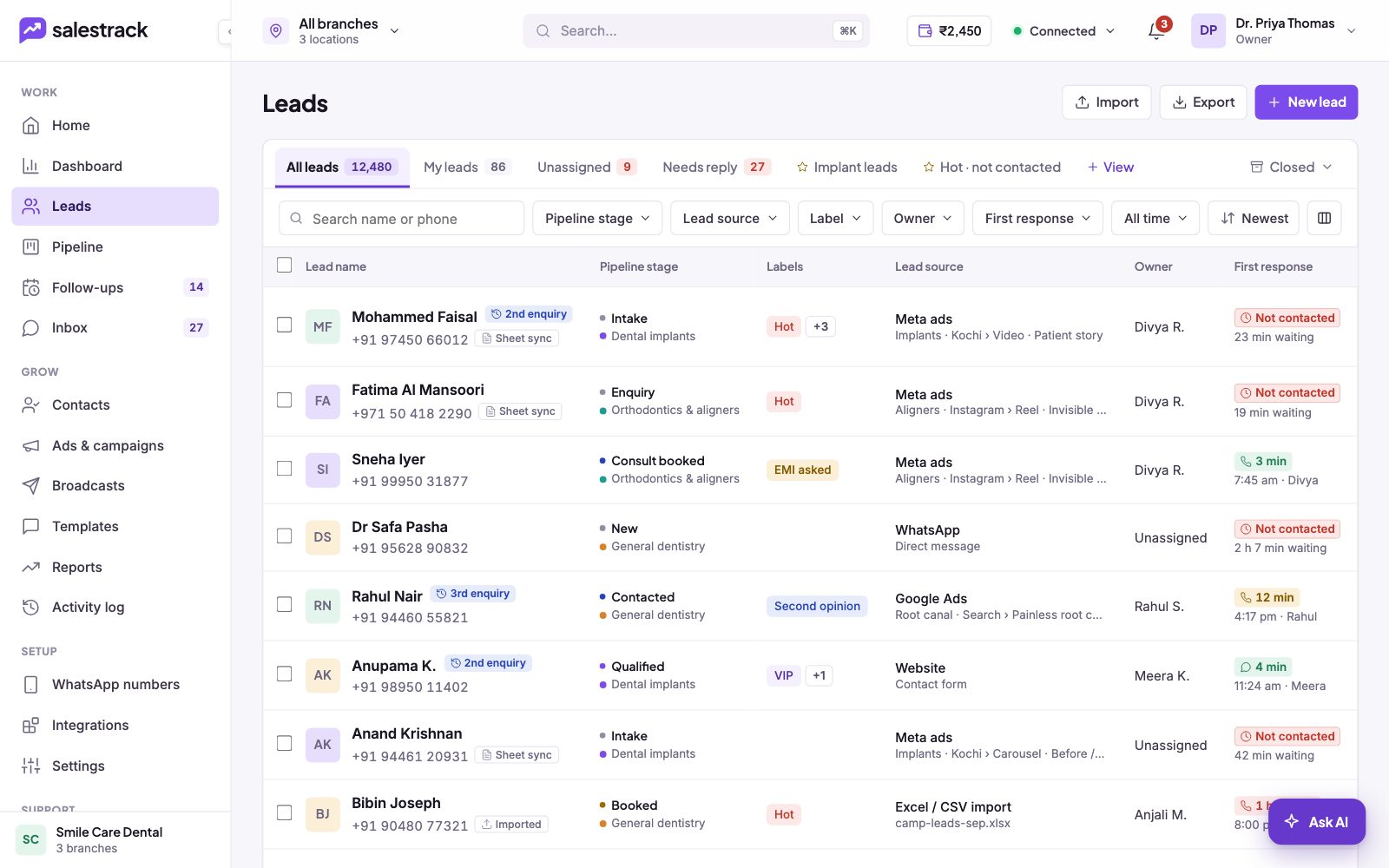
- Start the import. On the Leads page, click Import at the top right. You can also import from Contacts in the left menu.
- Choose your file. Pick the Excel or CSV file from your computer.
- Name the list. Give the import a clear name, such as the event or month the leads came from. The people in the file are saved as a contact list with this name.
- Tick "Add to Leads page". Leave this ticked if you want your team to work these people as leads. Untick it if you only want a contact list for broadcasts.
- Match your columns. salestrack matches columns it recognises for you. Check each one and fix any that are wrong. Name and Phone must be matched before you can continue.
- Wait for the import to finish. A progress bar shows how far it has gone. When it is done, you see how many contacts were imported.
After the import
- Imported leads show an Imported tag under the phone number, and their lead source shows Excel / CSV import with the file name.
- To work only the new leads, filter the Leads list by Lead source.
- New leads are shared out by your lead assignment rules. Check the Unassigned tab for any that did not match a rule.
If something goes wrong
- Fewer leads than rows. Some rows were duplicates and were merged, or had errors. Download the error file to see which.
- I cannot continue past matching. Make sure one column is set to Name and one to Phone.
- I do not see the Import button. Your role may not have access. Ask your owner or admin.
Need help with a large or messy file? Message us on WhatsApp at +91 80860 14345 or email harshad@dentobees.com.
Read next
- Sync leads from a Google Sheet · Help guide
- Repeat enquiries and duplicate leads · Help guide
- Lists or segments: which to use · Help guide
- Work the Leads list · Help guide
- Lead management in salestrack
- Integrations
Still stuck? Ask us on WhatsApp.Real people reply Monday to Saturday, 9 am to 9 pm IST. Tell us what you were trying to do and we will send the answer or the right guide.Message supportEmail us