The same person often enquires more than once: from an ad today, on WhatsApp next week, through a form next month. salestrack keeps one lead per person, so your team sees the full history and two people do not call the same customer.
How matching works
salestrack matches leads by phone number. When a new enquiry comes in from any source, it checks whether a lead with that phone already exists.
- New phone number: a new lead is created and goes through your assignment rules.
- Phone already exists: no new lead is created. The existing lead's enquiry count goes up, and it shows a badge such as 2nd enquiry or 3rd enquiry.
- Existing lead was closed (for example Lost): it is reopened, so your team can act on the new enquiry.
The same check runs when you add a lead with New lead and when you import a file. On import, matching rows are merged into the existing lead instead of being added twice.
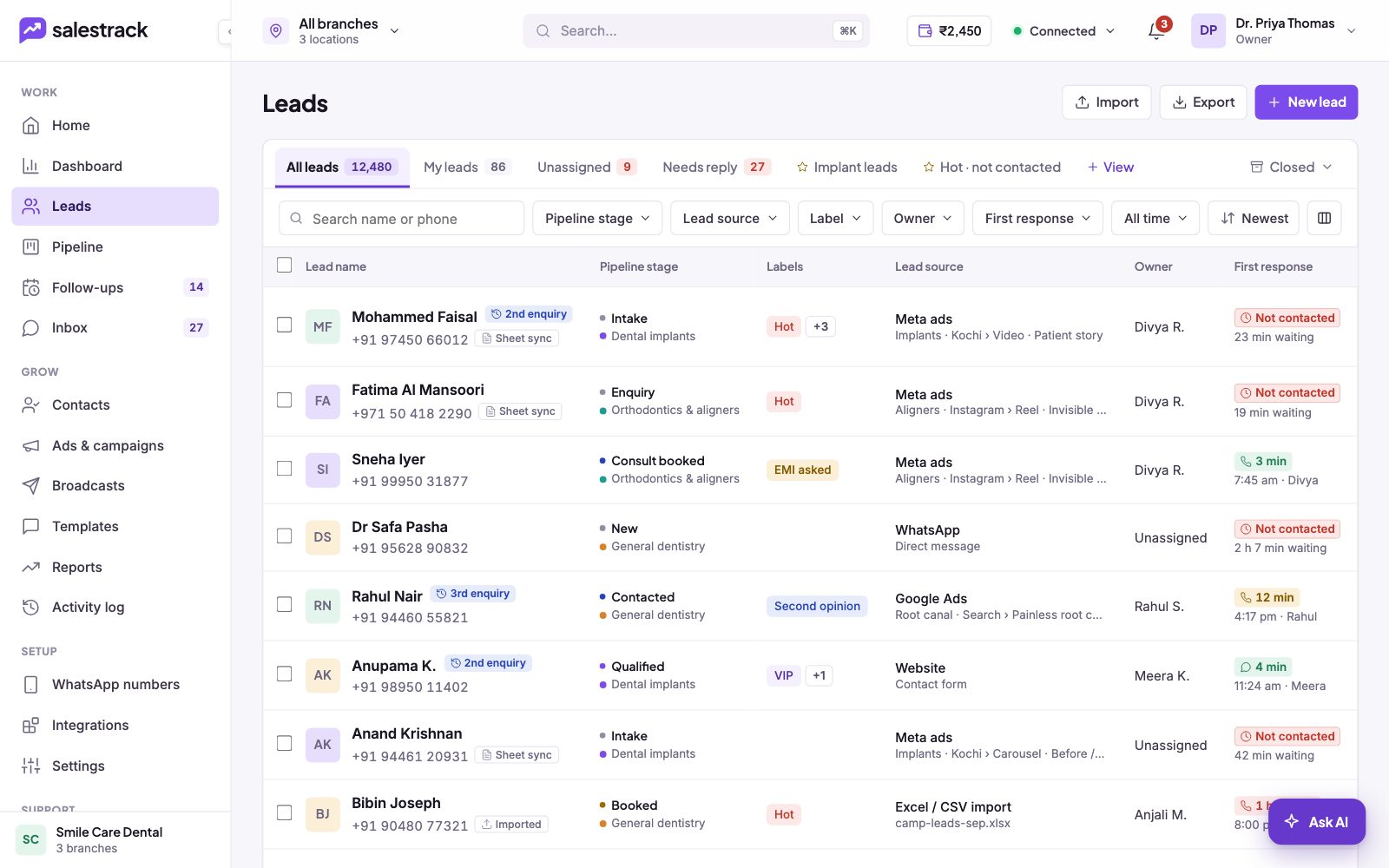
Check what happened last time
- Open the lead. Click the lead with the repeat-enquiry badge, then Open lead page.
- Read the previous enquiry card. Under About this lead, a card such as "Previous enquiry · Lost" shows when they enquired, from which source, why it closed and who handled it.
- See the details. Tap the card to see what happened, then check the Activity tab for past calls and messages.
- Reply with context. Use what you learned. If they chose someone else on price last time, lead with what has changed.
Who gets a returning lead
Under Settings › Lead assignment, the switch Returning leads go to their previous owner decides this. When it is on, a person who messages again goes back to whoever handled them before. When it is off, the lead goes through your normal rules.
If you still see a duplicate
A duplicate can slip in when the same person uses two different phone numbers. salestrack cannot tell these apart, because the numbers do not match. Mark the extra lead Not qualified with the reason Duplicate lead. It leaves your working list and is kept out of conversion rates.
Read next
- Work the Leads list · Help guide
- Import leads from Excel or CSV · Help guide
- Set up lead assignment rules · Help guide
- Mark a lead Lost, Not qualified or Nurture · Help guide
- Lead management feature
- Lead assignment rules