A follow-up is a planned call, message or visit for a lead. A task is a to-do that is not tied to a lead, such as ordering stock. salestrack keeps all of them on one page, so nothing due slips through.
Schedule a follow-up or task
- Open Follow-ups. In the left menu, under Work, click Follow-ups. The number next to it is how many are overdue.
- Add one. Click New follow-up or task at the top right.
- Fill it in. Choose the lead (or leave it as a task), what to do, the due date and time, the priority and who it is assigned to.
- Or add it from the lead. On the lead page, use Log a call, message or note after a conversation to note what was said and when to follow up. The next follow-up then shows in the lead's Next up card.
Work the Follow-ups page
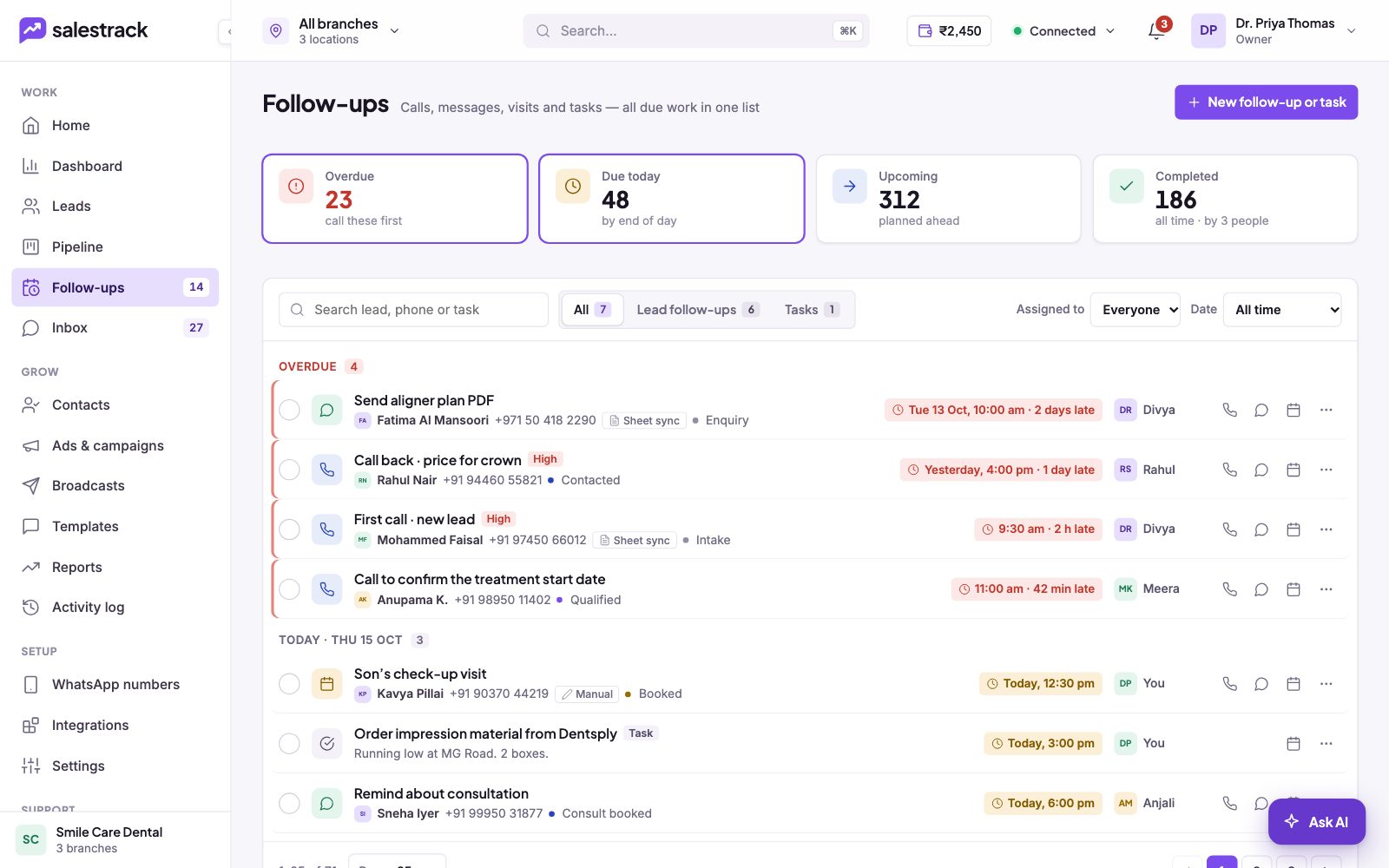
Four cards sit at the top: Overdue (call these first), Due today, Upcoming and Completed. Click a card to see that list. Below, you can:
- Switch between All, Lead follow-ups and Tasks.
- Filter by Assigned to (Everyone, Me or a teammate) and Date.
- Search by lead, phone or task.
The list is grouped by day. Each row shows what to do, the lead with phone and stage, the due time with how late it is, the priority (for example High) and who it is assigned to. Use the icons on the right to call, message or reschedule.
Clear overdue follow-ups
- Open Overdue. Click the Overdue card. If you are a manager, set Assigned to to see one person's list.
- Start with High priority. Work from the top. Call or message the lead with the icons on the row.
- Mark it done. Tick the circle at the start of the row when it is finished.
- Reschedule if needed. If the lead asked you to call later, use the calendar icon to move it to a new time instead of leaving it overdue.
Agents: use My day
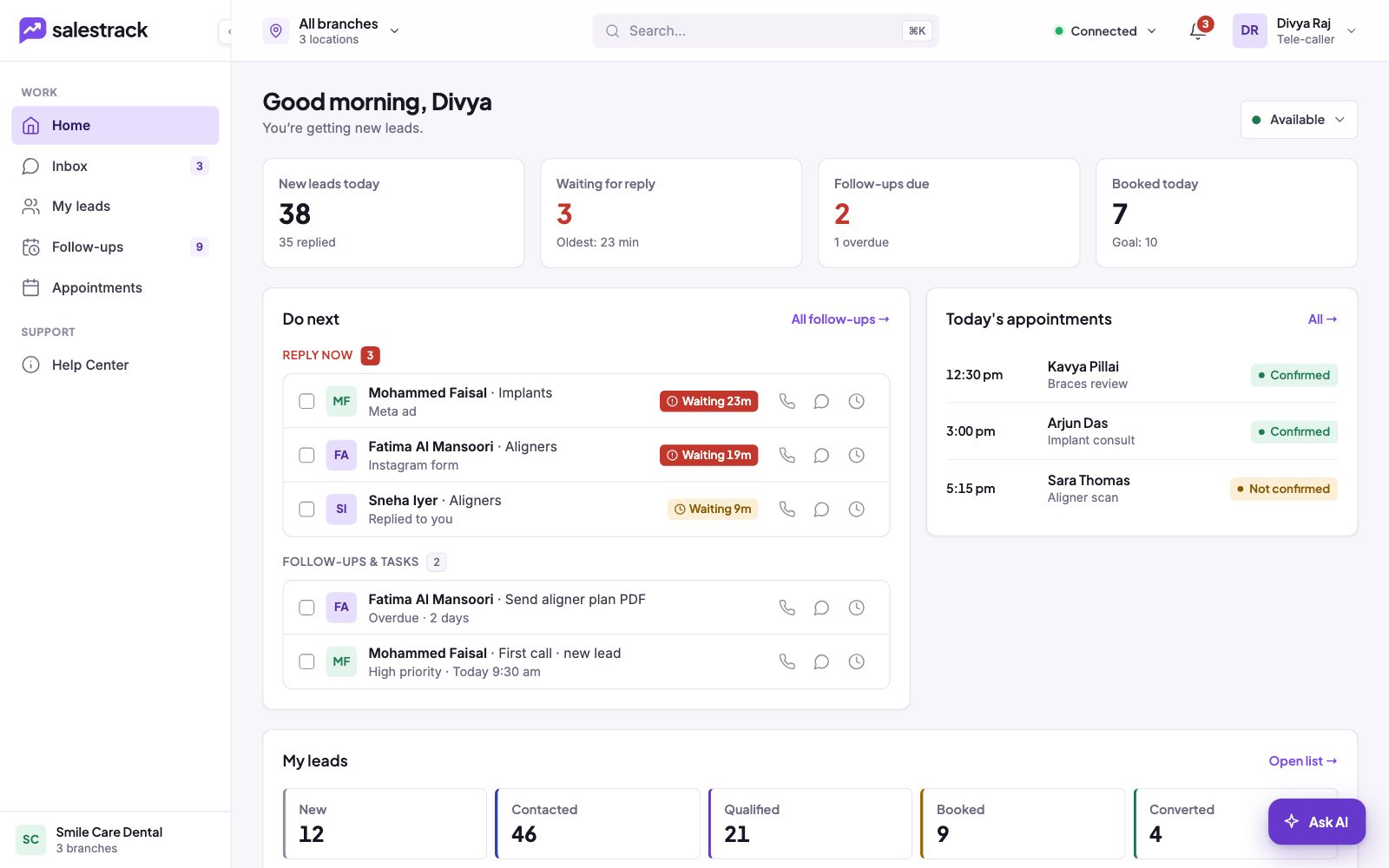
If you work leads, your home screen is My day. It shows new leads today, leads waiting for a reply, follow-ups due and bookings against your goal. The Do next list puts Reply now leads first, then Follow-ups & tasks, overdue first. Click All follow-ups to open the full page.
Read next
- Everything on the lead page · Help guide
- Move leads through the pipeline · Help guide
- Work the Leads list · Help guide
- Automated follow-ups feature
- A WhatsApp follow-up sequence that works