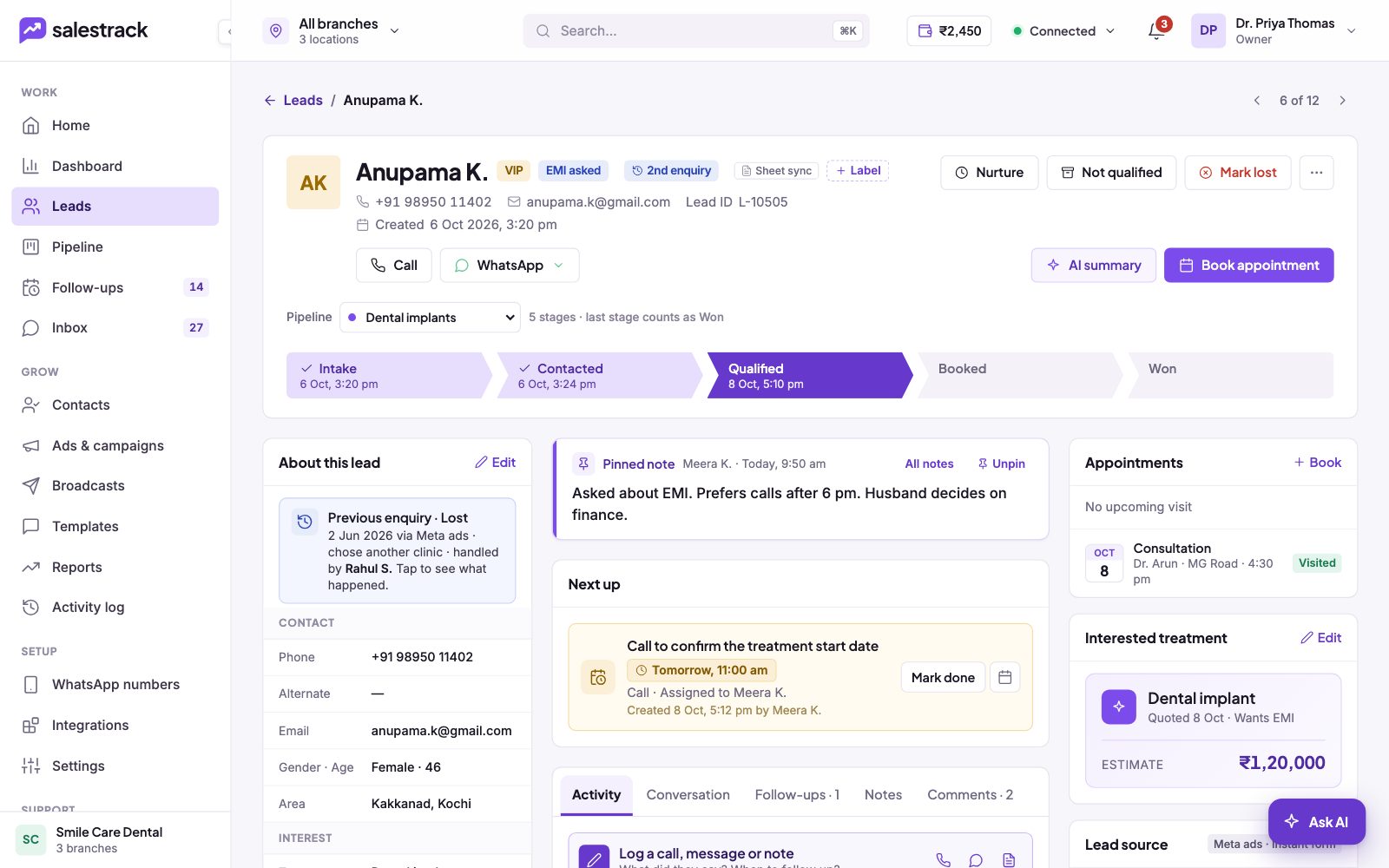
The lead page shows everything about one person: who they are, what they want, where they came from, what your team has done, and what happens next. Open it by clicking a lead on the Leads list and then Open lead page in the drawer. Use the arrows at the top right (for example "6 of 12") to move to the next lead in your list.
The header: who and what to do
At the top you see the name, phone, email, Lead ID and created date, with labels such as VIP, 2nd enquiry or Sheet sync. Click + Label to add one.
- Call and WhatsApp contact the lead straight away.
- AI summary gives you a short summary of the lead so far.
- Book appointment books a visit.
- Nurture, Not qualified and Mark lost close or park the lead. See Mark a lead Lost, Not qualified or Nurture.
Pipeline and stage bar
Below the header, the Pipeline dropdown shows which pipeline the lead is in, with a note such as "5 stages · last stage counts as Won". The stage bar shows each stage with the date and time it was reached.
- Move the lead. Click a stage on the bar to move the lead there.
- Change pipeline. If the lead is interested in something else, pick another pipeline from the dropdown.
Notes, next step and activity
- Pinned note: the one thing everyone should know, for example the best time to call. Use All notes to see the rest, or Unpin.
- Next up: the next follow-up, with its due time, type and who it is assigned to. Click Mark done once it is done.
- Tabs: Activity (calls, messages and updates in time order), Conversation (the WhatsApp chat), Follow-ups, Notes and Comments. In Comments you can @mention a teammate.
- Log a call, message or note: record what the lead said and when to follow up, so the next person has the full story.
About this lead, and the right column
About this lead on the left holds the details, grouped as Contact, Interest (what they want, estimated value, payment, urgency), branch details, and Lead (owner, source, first response, last activity, WhatsApp opt-in). Click Edit to change them. If this person enquired before, a card such as "Previous enquiry · Lost" shows when, how and who handled it.
The right column shows:
- Appointments: upcoming and past visits, with + Book.
- Interested treatment: what they asked about and the estimate. Click Edit to change it.
- Lead source: the source, campaign and ad, how the lead came in (for example via Google Sheet sync), and View campaign performance.
- Files: documents and images for this lead. Click Upload to add one.
Read next
- Work the Leads list · Help guide
- Move leads through the pipeline · Help guide
- Schedule follow-ups and clear overdue ones · Help guide
- Mark a lead Lost, Not qualified or Nurture · Help guide
- Lead management feature
- WhatsApp inbox feature