Every enquiry, from every source, lands on the Leads list. Use it to find who needs action right now, reply in one click, and make sure no lead is forgotten. Open it from the left menu: under Work, click Leads.
Views and filters
The tabs across the top are saved views. Each shows a count:
- All leads: every open lead you are allowed to see.
- My leads: leads where you are the owner.
- Unassigned: leads with no owner yet. Someone should pick these up quickly.
- Needs reply: leads waiting for your team to answer.
- Your own saved views, for example "Implant leads" or "Hot · not contacted".
Below the tabs you can search by name or phone, and filter by Pipeline stage, Lead source, Label, Owner, First response and date (All time, Today and so on). The sort button starts on Newest.
- Pick a view. Click a tab such as Needs reply or Unassigned.
- Narrow it down. Add filters, for example Lead source and Owner.
- Save it. Click + View to save the filters as a new tab, so you can come back to it in one click.
- See closed leads. Use the Closed switch on the right to see Won, Lost, Not qualified and Nurture leads.
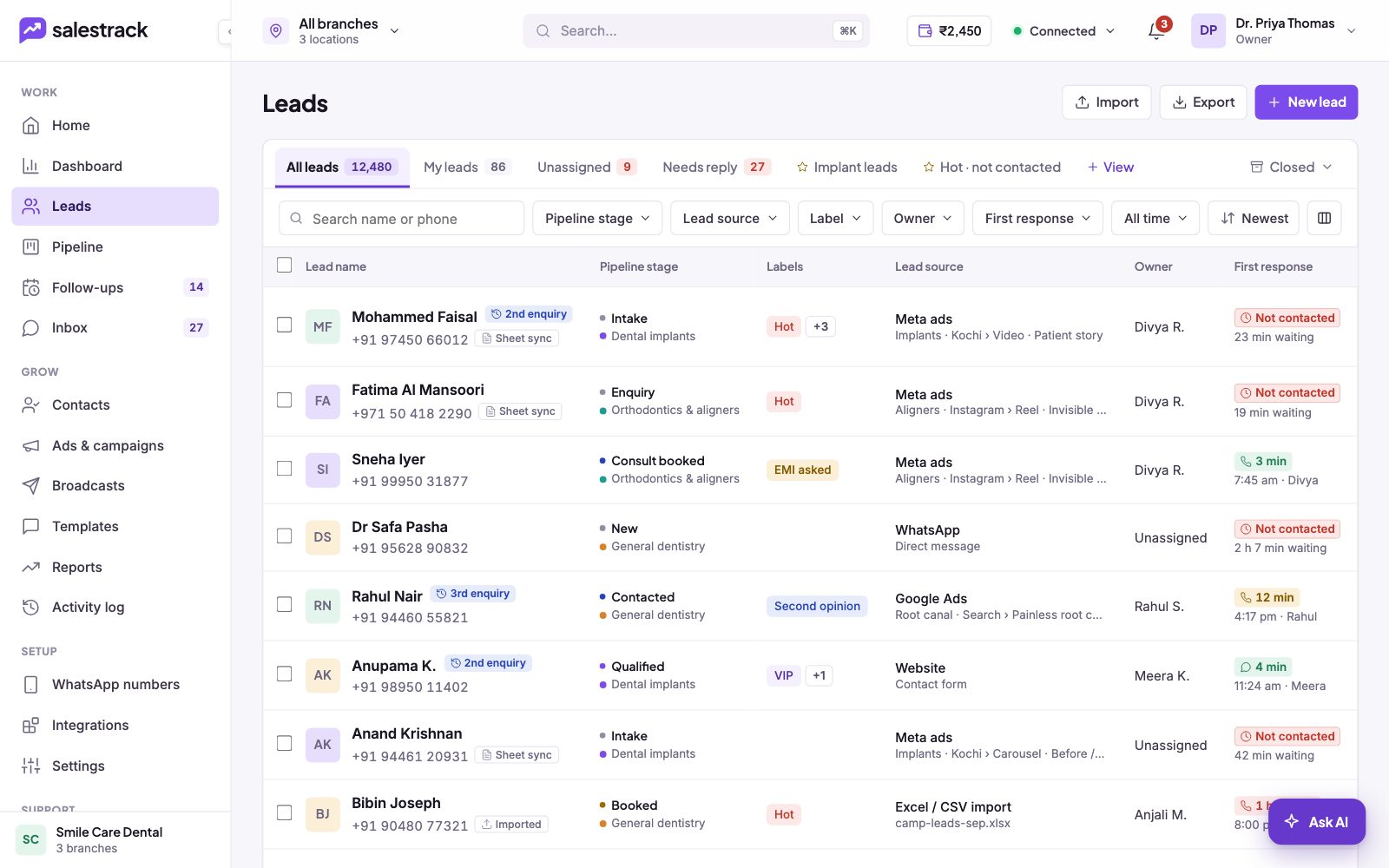
Reading a row
Each row tells you what you need to act:
- Lead name with phone. Badges such as 2nd enquiry, Sheet sync or Imported show repeat enquiries and where the lead came in from.
- Pipeline stage and the pipeline it belongs to.
- Labels, such as Hot or VIP.
- Lead source, with the campaign and ad when the lead came from ads.
- Owner, or Unassigned.
- First response: how quickly your team first replied, or "Not contacted" with the waiting time in red.
- Follow-up date (red when overdue), Last activity and Created.
Click a row to open the lead in a quick-view drawer on the right, without leaving the list. From there, Open lead page takes you to the full lead page.
Act on many leads at once
- Select leads. Tick the box on each row, or the box in the header to select the whole page.
- Choose an action. You can assign an owner, add a label, move the stage, add to a list, export or delete.
- Confirm. Delete asks you to confirm before it removes anything.
Import, export and add a lead
The buttons at the top right are Import, Export and New lead. Use New lead for walk-ins and phone enquiries. salestrack checks the phone number when you add or import a lead, so the same person does not appear twice. At the bottom of the list, choose how many rows to show per page.
Read next
- Everything on the lead page · Help guide
- Repeat enquiries and duplicate leads · Help guide
- Import leads from Excel or CSV · Help guide
- Set up lead assignment rules · Help guide
- Lead management feature
- Speed to lead