When a new lead comes in, salestrack decides which pipeline it goes to and who owns it. You set this once under Settings › Lead assignment. The checks run from top to bottom and stop at the first match, so each lead is placed by exactly one rule.
Before you start
- You need access to Team & settings. By default that is the Owner and Admin roles.
- Invite your team first, so you have people to assign to. See Invite your team.
- Set up your pipelines under Settings › Pipelines, and what you sell under Settings › Treatments & prices.
Step 1: Keyword matches
Keyword matches look for words in the first WhatsApp message, the form answers, or the ad or campaign name. For example, "I'm interested in RCT" can go straight to the right pipeline and person.
- Open Lead assignment. Go to Settings, and under Leads click Lead assignment.
- Add a rule. Click Add keyword match.
- Name it and choose sources. Give it a clear name, such as "Implant enquiries", and pick which sources it applies to, or any source.
- Add the words. Type the words to look for, and choose where to look: in the first message, form answers, or ad or campaign name.
- Choose where it goes. Pick the pipeline and starting stage under Goes to.
- Choose who gets it. Pick one or more responsible people. With more than one, choose how they share leads: round robin or capacity based.
- Turn it on. Use the On switch. Turn a rule off to pause it without deleting it.
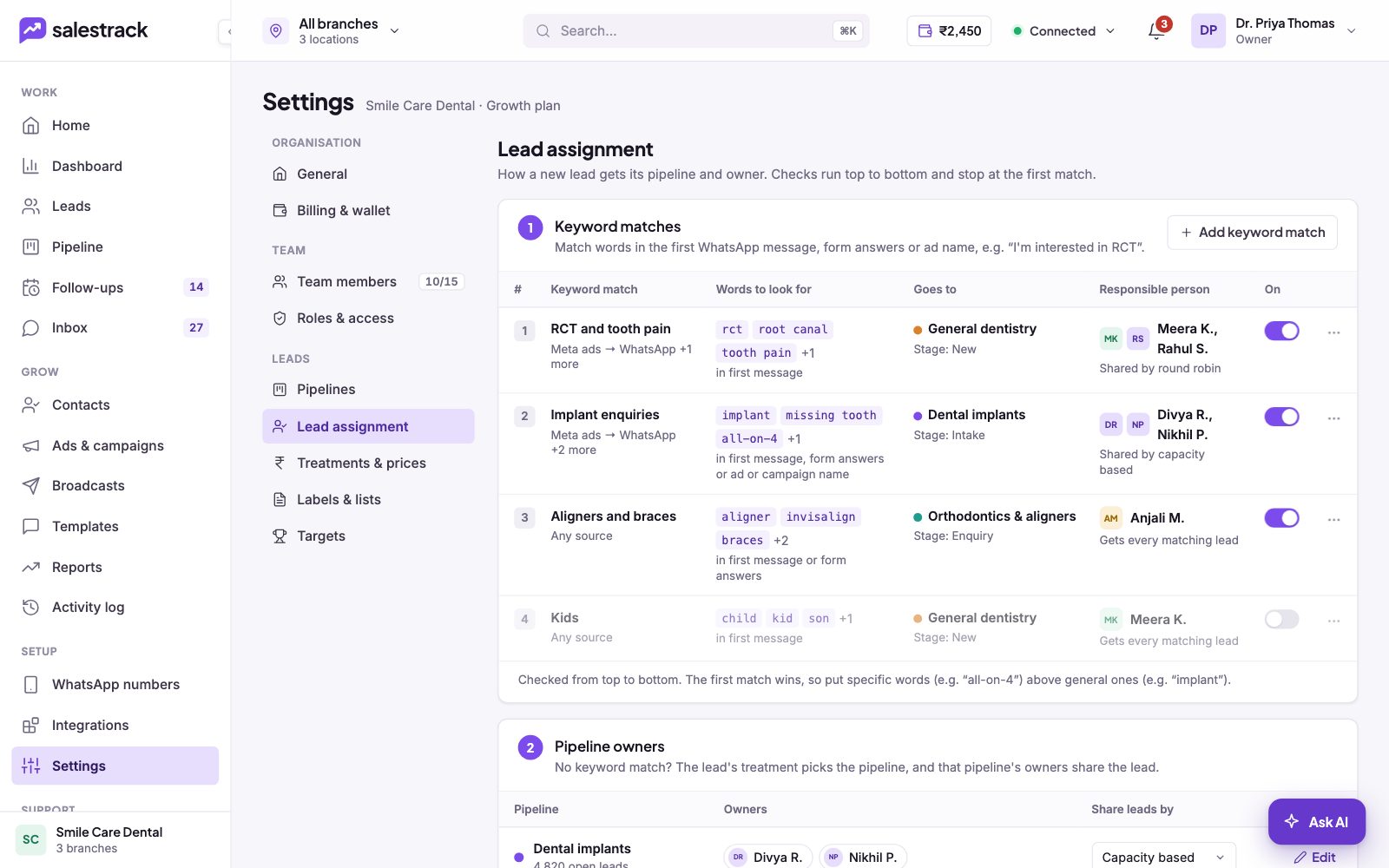
Step 2: Pipeline owners
If no keyword matches, the lead's treatment picks the pipeline, and that pipeline's owners share the lead. For each pipeline, click Edit to choose the owners and how they share leads: Round robin or Capacity based.
Step 3: Everything else
Leads that match nothing go to your default pipeline. Choose how they are shared:
- Manual: leads wait for someone to assign them.
- Round robin: leads go to each member in turn, in the order shown. Everyone gets an equal share. You can see who is next and how many leads each person got today.
- Capacity based: leads are shared based on how much each person can take.
You can also choose who is notified, and what happens when everyone is full: hold the lead in a queue and notify a manager, give it to the least busy member anyway, or leave it unassigned.
Rules for every method
These switches apply to all three steps:
- Keep leads in their branch: only assign to members who work at the branch the lead came for.
- Returning leads go to their previous owner: when someone messages again, it goes back to whoever handled them.
- Skip members who are away: leave out people on leave or outside their working hours. Leads wait for the next shift.
- Reassign if not contacted in time: if the owner has not called or messaged within the minutes you set, the lead moves to the next person.