Unassigned leads wait, and waiting leads go cold. If a lead shows Unassigned on the Leads list, or went to the wrong person, work through the checks below. Most problems are fixed in a minute.
First, assign the lead now
- Open Unassigned. On the Leads list, click the Unassigned tab. The dashboard's "Not assigned" card opens the same list.
- Assign an owner. Tick the lead (or several), then choose assign owner. You need the Change lead owner permission.
Then find the cause, so it does not happen again.
Check these in order
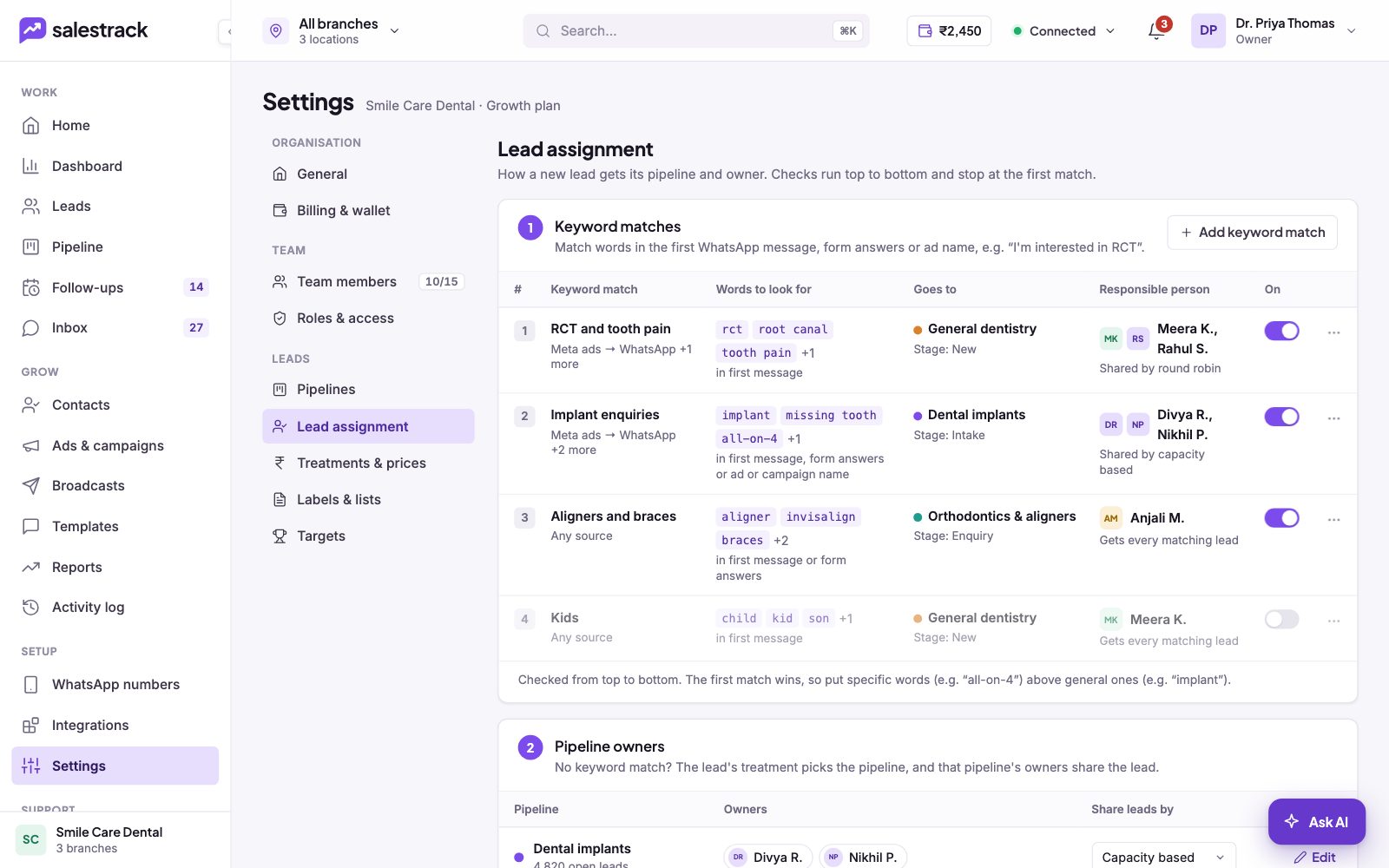
Open Settings › Lead assignment. Remember that checks run from top to bottom and stop at the first match.
- Is "Everything else" set to Manual? In step 3, Manual means leads that match no rule wait for someone to assign them. Choose Round robin or Capacity based if you want them shared automatically.
- Is everyone full? Step 3 also sets what happens when everyone is full. If it is set to leave leads unassigned or hold them in a queue, leads wait until someone has room. Check capacity under Settings › Team members.
- Is the keyword rule on? A rule with its On switch off is skipped. In the example below, the Kids rule is off.
- Did another rule match first? If a general word such as "implant" sits above a specific one such as "all-on-4", the general rule wins. Drag the specific rule higher.
- Does the rule look in the right place? A rule that looks only "in first message" will not match words in form answers or the ad name. Check the sources too: a rule for one source will not catch leads from another.
- Does the pipeline have owners? In step 2, a pipeline with no owners has no one to share its leads with.
Check the people
Under Settings › Team members, for each person who should get leads:
- Gets new leads must be on.
- Their status should be Active, not Invited, On leave or Deactivated. With Skip members who are away on, people on leave or outside working hours are skipped, and leads wait for the next shift.
- Their availability should be Available. People On break or Offline do not get new leads.
- With Keep leads in their branch on, they must work at the branch the lead came for.
If the lead went to the wrong person
- Returning leads go to their previous owner sends repeat enquiries back to whoever handled them before, even if a keyword rule points elsewhere.
- Reassign if not contacted in time moves a lead to the next person if the first owner did not call or message within the set minutes.
- Open the lead and check the Activity tab to see how it was assigned and reassigned.
Read next
- Set up lead assignment rules · Help guide
- Invite your team and choose who gets leads · Help guide
- Work the Leads list · Help guide
- Lead assignment feature
- Lead assignment rules that work
Still stuck? Ask us on WhatsApp.Real people reply Monday to Saturday, 9 am to 9 pm IST. Tell us what you were trying to do and we will send the answer or the right guide.Message supportEmail us