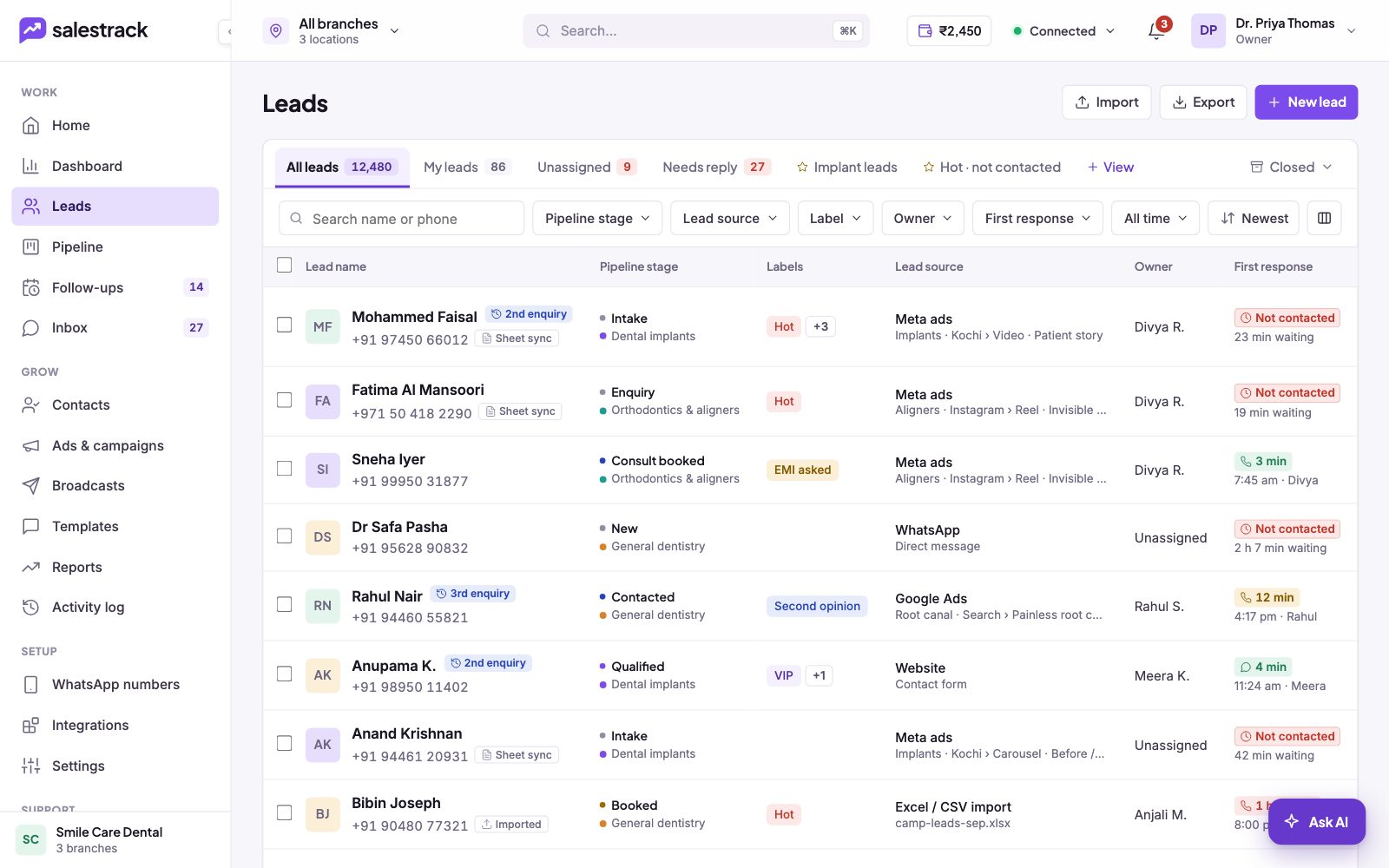
salestrack uses the same layout on every page: a menu on the left, a bar across the top and your work in the middle. Once you know these three parts, every screen feels familiar.
The left menu
The menu is grouped by the kind of work you do:
- Work is your daily list: Dashboard, Leads, Pipeline, Follow-ups and Inbox. The numbers next to Follow-ups and Inbox show overdue follow-ups and unread chats.
- Grow is for marketing and review: Contacts, Ads & campaigns, Broadcasts, Templates, Reports and Activity log.
- Setup is for one-time setup: WhatsApp numbers, Integrations and Settings.
- Support holds the Help Center.
At the bottom, a card shows your business name and number of branches. You can collapse the menu to icons, and on a phone it opens from the menu button in the top bar.
The top bar
From left to right:
- Branch switcher. Choose All branches or one branch. It filters every page. If your role covers only one branch, it is locked to that branch.
- Search. Find leads, contacts, phone numbers and pages. Press ⌘K to jump to it.
- Wallet. Shows your balance. Click it to see what you used this month and to add money. See Recharge your wallet.
- Connection status. A green Connected dot means your WhatsApp numbers and lead sources are working. It turns red if one breaks. Click it to see which.
- Notifications. The bell lists new leads assigned to you, mentions, failed syncs, low balance and template approvals.
- Account. Your name and role. The menu has your profile, your availability (Available, On break, Offline), the Help Center and log out.
What you see depends on your role
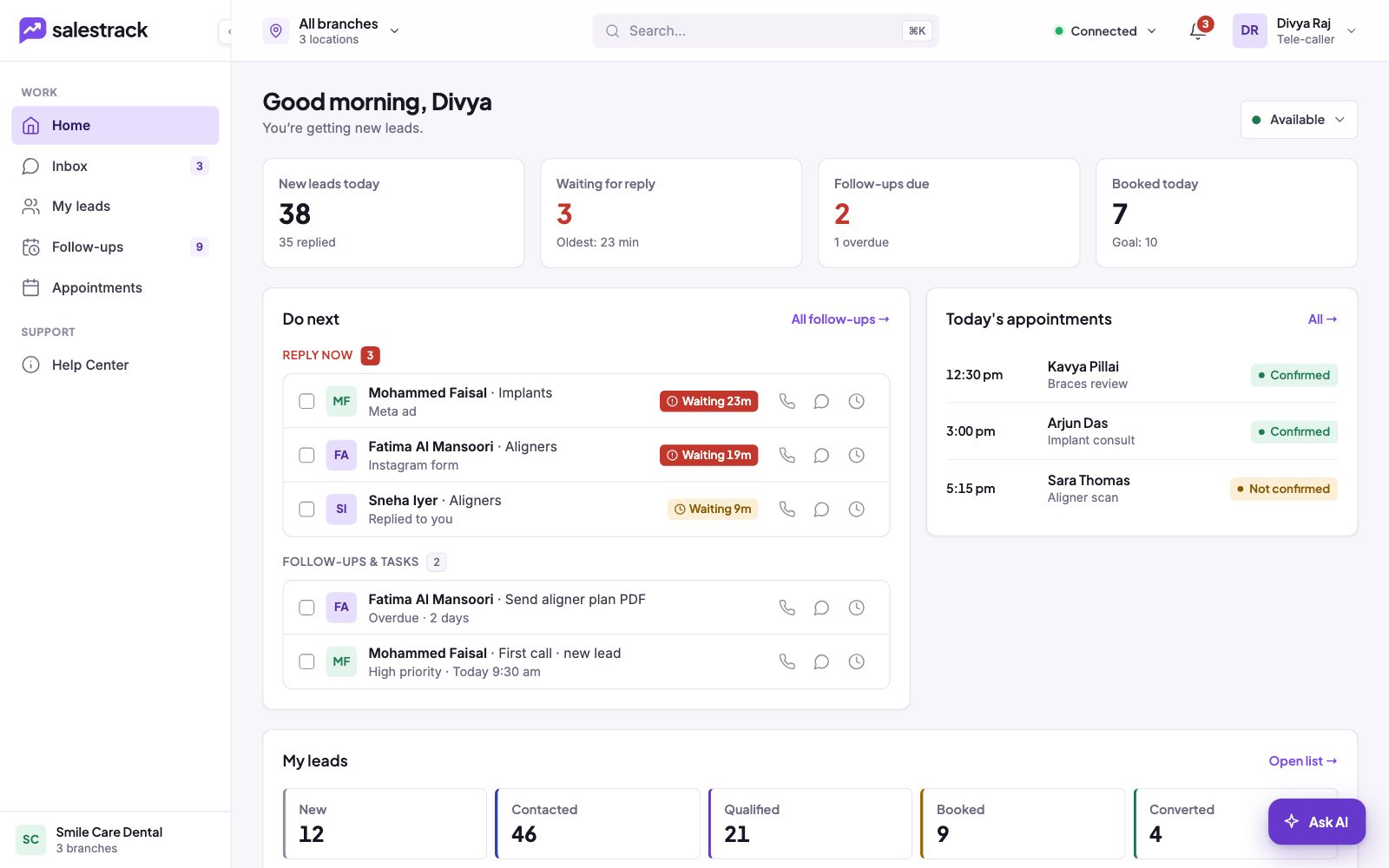
Owners, admins and managers open the Dashboard, which shows what needs action across the business. Agents and front desk staff get their own home page with a Do next list of leads to reply to and follow-ups due. Menu items your role cannot use are hidden.
Ask AI and the lead drawer
- Ask AI sits at the bottom right of every page. Ask a question about what is on screen, or get help drafting a reply or a summary.
- Lead drawer. Click a lead in Leads, Pipeline, Follow-ups or Reports and a panel opens on the right, so you do not lose your place. It has tabs for Activity, Conversation, Follow-ups, Notes and Comments. Click Open lead page for the full page.
Read next
- Set up your salestrack account · Help guide
- Work the Leads list · Help guide
- Reply to leads in the Inbox · Help guide
- Roles and access: who can see what · Help guide
- Lead management in salestrack
- AI sales agent
Still stuck? Ask us on WhatsApp.Real people reply Monday to Saturday, 9 am to 9 pm IST. Tell us what you were trying to do and we will send the answer or the right guide.Message supportEmail us