The Inbox is where your team talks to leads on WhatsApp. Every chat from your connected numbers lands here, and the lead's stage, source and next follow-up sit right beside the conversation. The faster you reply, the more leads you keep.
Find the right chat
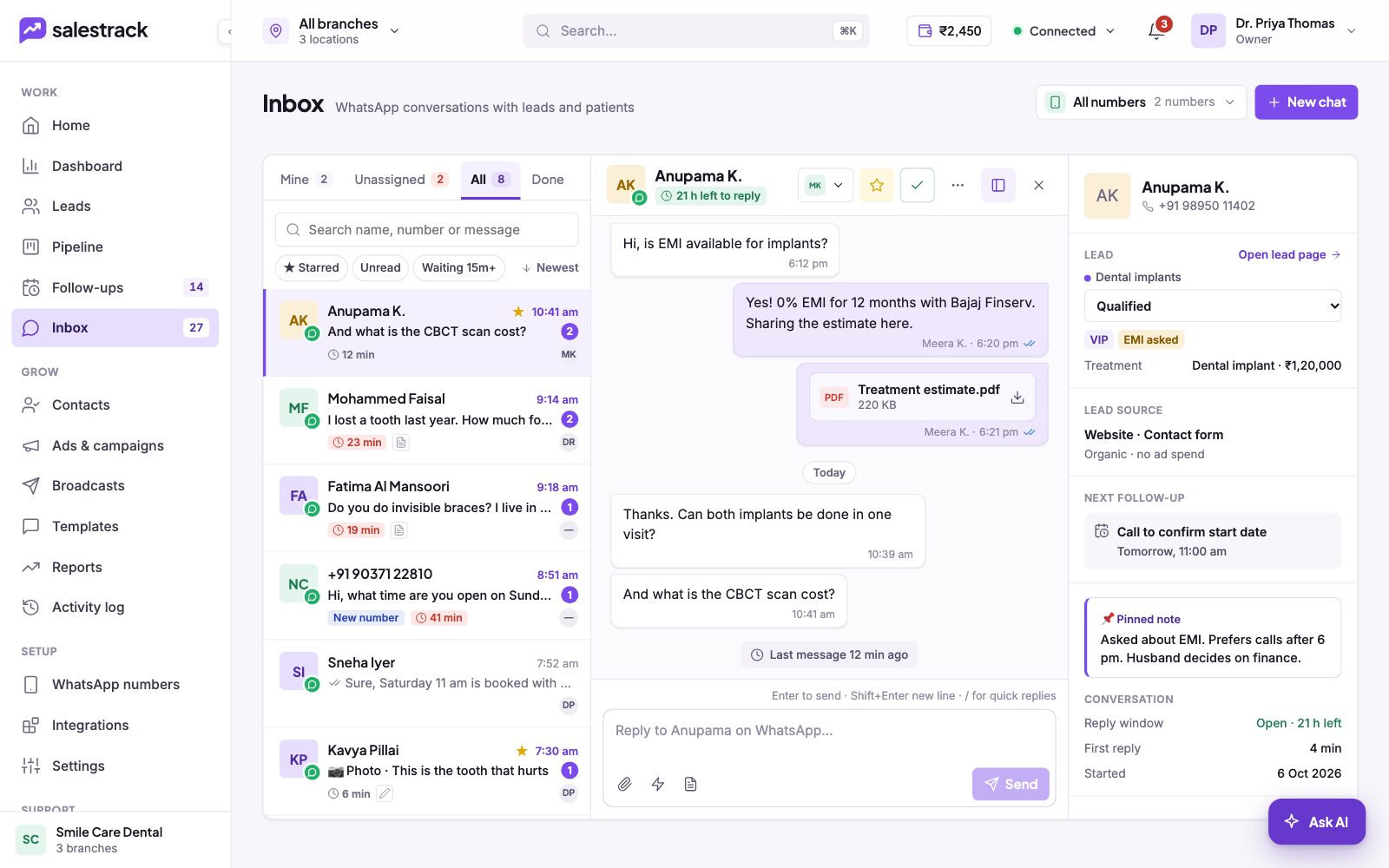
In the left menu, click Inbox. The number next to it shows unread chats. The left column lists conversations:
- Tabs. Mine shows chats assigned to you. Unassigned shows chats nobody owns yet. All shows every chat you can see. Done holds closed chats.
- Quick filters. ★ Starred, Unread and Waiting 15m+ for chats that have waited too long. Sort with Newest.
- Search. Search by name, number or message text.
- Numbers. If you have more than one WhatsApp number, use All numbers at the top to pick one.
Each row shows the last message, unread count, how long the lead has been waiting and who owns the chat. A New number tag means the person is not yet a known lead. Window closed means the 24-hour reply window has ended.
Reply to a lead
- Open the chat. Click a conversation. Start with Waiting 15m+ or the oldest waiting time.
- Check the reply window. Under the lead's name you see the time left, for example 21 h left to reply. While the window is open, you can type any message.
- Type and send. Write in the reply box. Press Enter to send and Shift+Enter for a new line. Type / to pick a quick reply.
- Attach a file. Use the paperclip to send a PDF, photo or other file, such as a price estimate.
- Send a template when needed. If the window is closed, use the template button to send an approved template. See The 24-hour reply window.
Assign, star and close chats
- Assign or transfer. Use the owner menu at the top of the chat to give it to a teammate.
- Star. Click the star to keep a chat in ★ Starred.
- Mark done. Click the tick when the conversation is finished. It moves to Done.
- Start a new chat. Click New chat at the top right to message someone first.
Use the lead panel
The right panel shows the lead behind the chat: pipeline and stage, labels, treatment or product and value, lead source, next follow-up and any pinned note. Change the stage from the drop-down as the conversation moves on. At the bottom, Conversation shows the reply window, the first reply time and when the chat started. Click Open lead page for full history.
Read next
- The 24-hour reply window and templates · Help guide
- Everything on the lead page · Help guide
- Schedule follow-ups and clear overdue ones · Help guide
- Keep using the WhatsApp Business app on the same number · Help guide
- WhatsApp inbox feature
- Speed to lead