salestrack sends and receives messages through the official WhatsApp Business Platform. Connecting your number is done in Meta's own window, opened from inside salestrack. It takes about 5 minutes once your business is verified.
Before you start
- Verify your business with Meta. Do this in Meta Business Suite, using your GST or business registration. Meta usually takes 2–5 working days. Read our guide to business verification.
- Keep the business phone ready. Meta sends a 6-digit code to it, by SMS or call.
- Have access to your Facebook business account, or know who manages it. You can send them a link instead of doing it yourself.
- You need the Owner or Admin role.
Steps
- Open WhatsApp numbers. In the left menu, under Setup, click WhatsApp numbers, then Connect number.
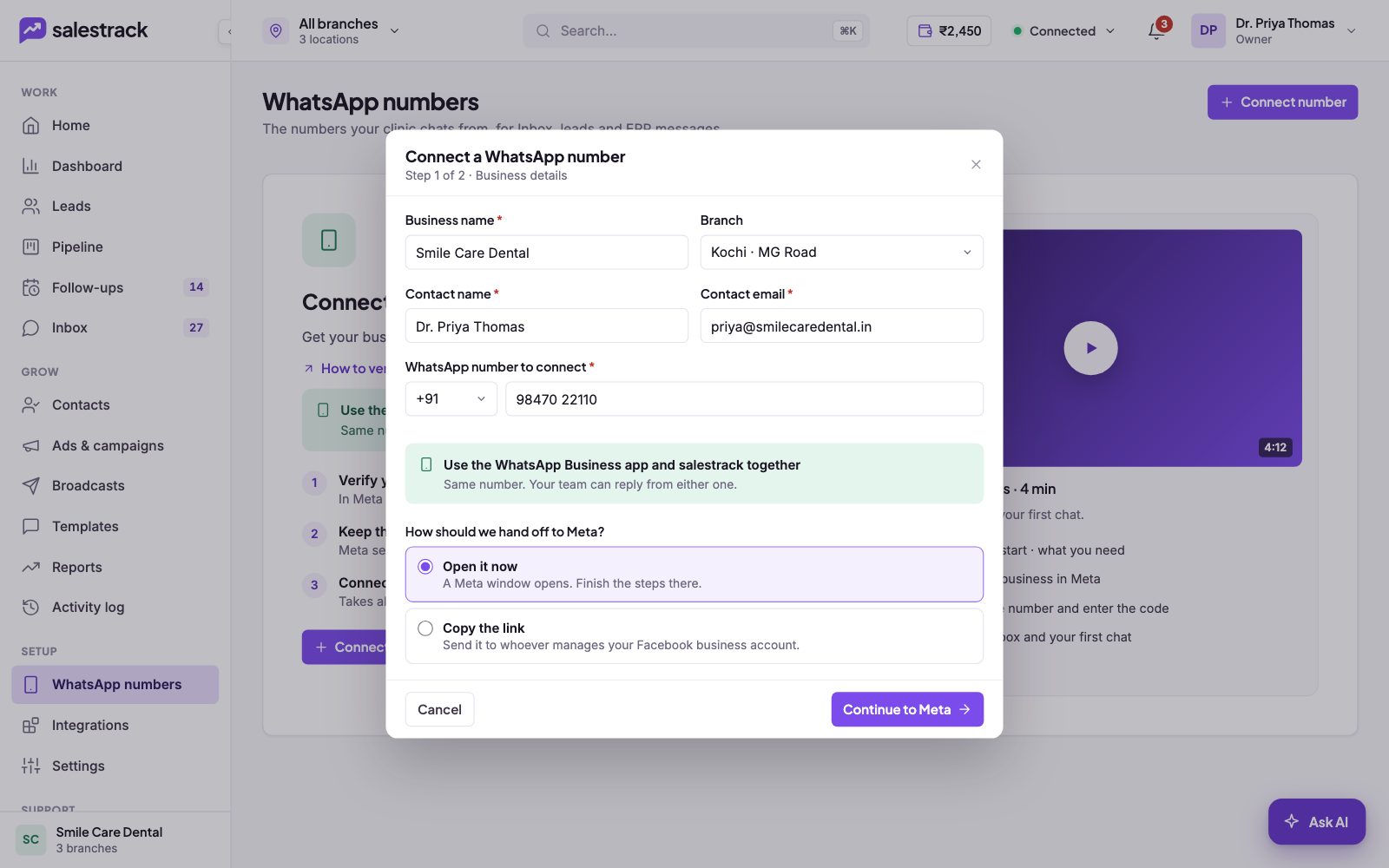
- Fill in your business details. Enter Business name, pick the Branch this number belongs to, then Contact name, Contact email and the WhatsApp number to connect with its country code. Fields with a red star are required.
- Choose how to hand off to Meta. Pick Open it now to finish the Meta steps yourself, or Copy the link to send it to whoever manages your Facebook business account. Then click Continue to Meta.
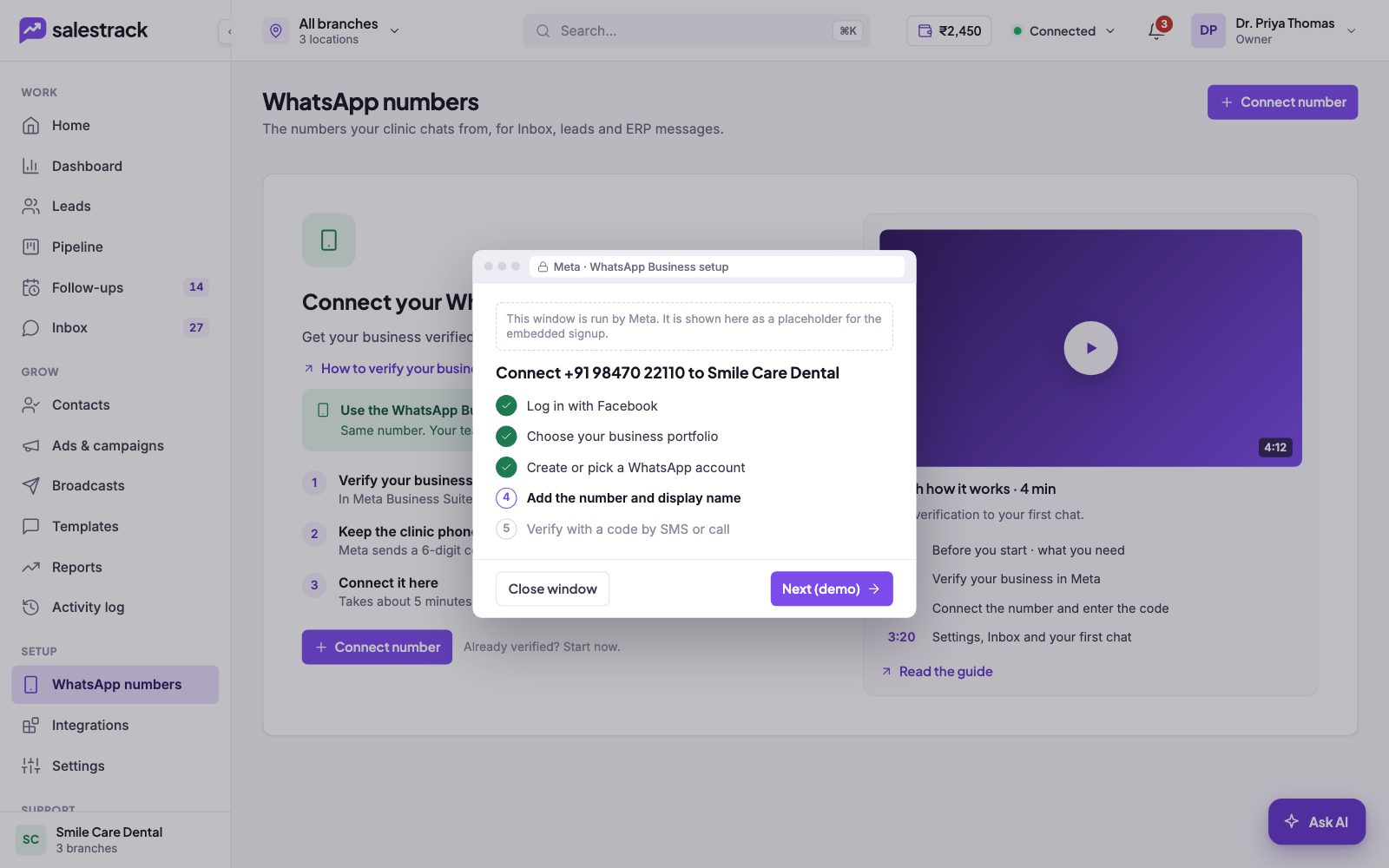
- Finish the steps in Meta's window. Log in with Facebook, choose your business portfolio, create or pick a WhatsApp account, add the number and display name, then verify with the code Meta sends by SMS or call.
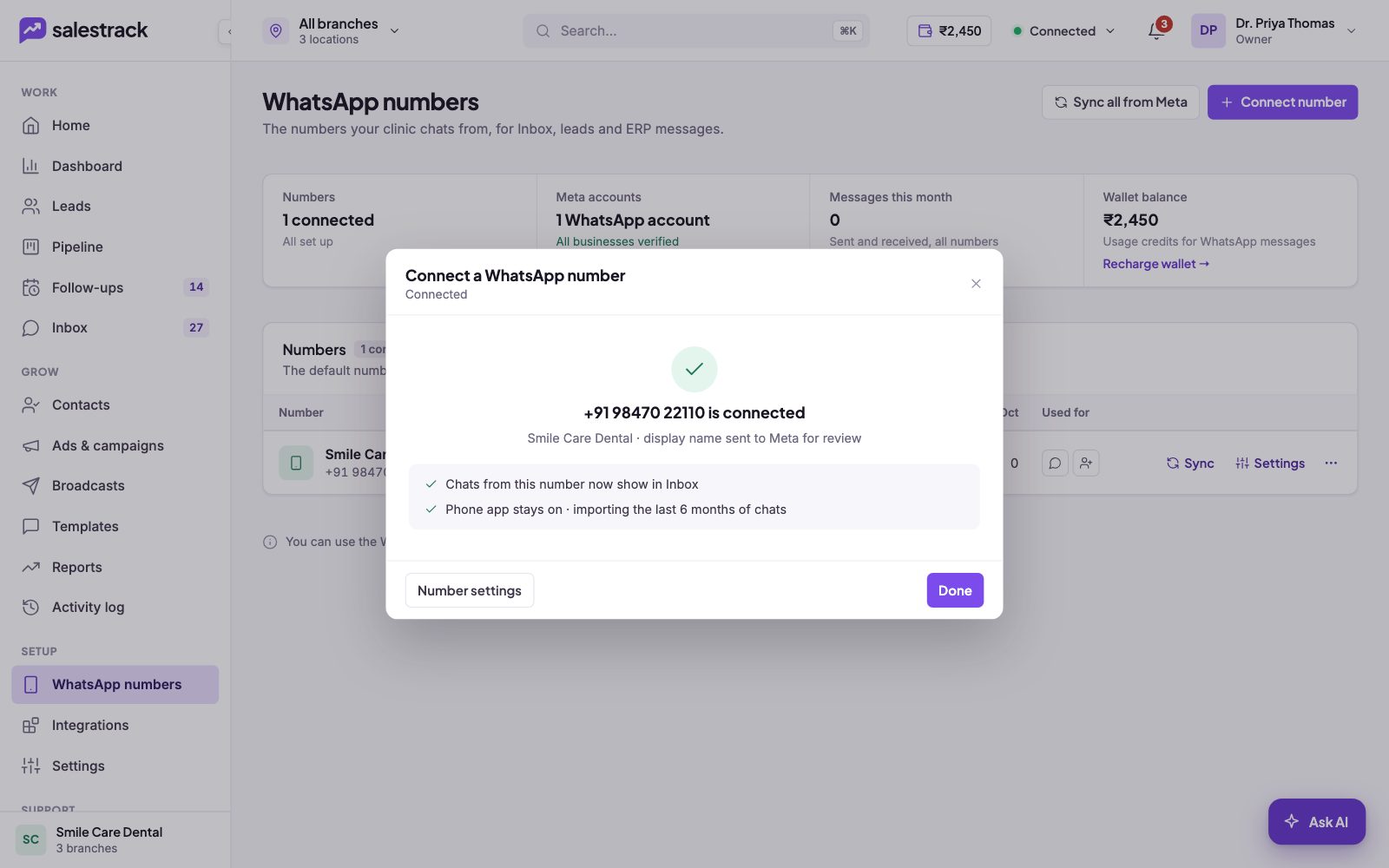
- Check the confirmation. salestrack shows that your number is connected and that your display name was sent to Meta for review. Chats from this number now show in your Inbox. Click Done, or Number settings to adjust it.
If something goes wrong
- You sent the link to someone else. The number shows as Pending with who the link was sent to. When they finish, it changes to Connected. You can also click Finish setup to complete it yourself.
- Display name in review. This is normal. Meta reviews every display name. You can chat while it is in review.
- Business not verified. Finish verification in Meta Business Suite first, then click Connect number again.
Need a hand? Message us on WhatsApp at +91 80860 14345 or email harshad@dentobees.com.
Read next
Still stuck? Ask us on WhatsApp.Real people reply Monday to Saturday, 9 am to 9 pm IST. Tell us what you were trying to do and we will send the answer or the right guide.Message supportEmail us