Once your numbers are connected, check this page now and then to keep them healthy. A number with a low quality rating or a small daily limit can slow down your broadcasts and new chats.
Open the page
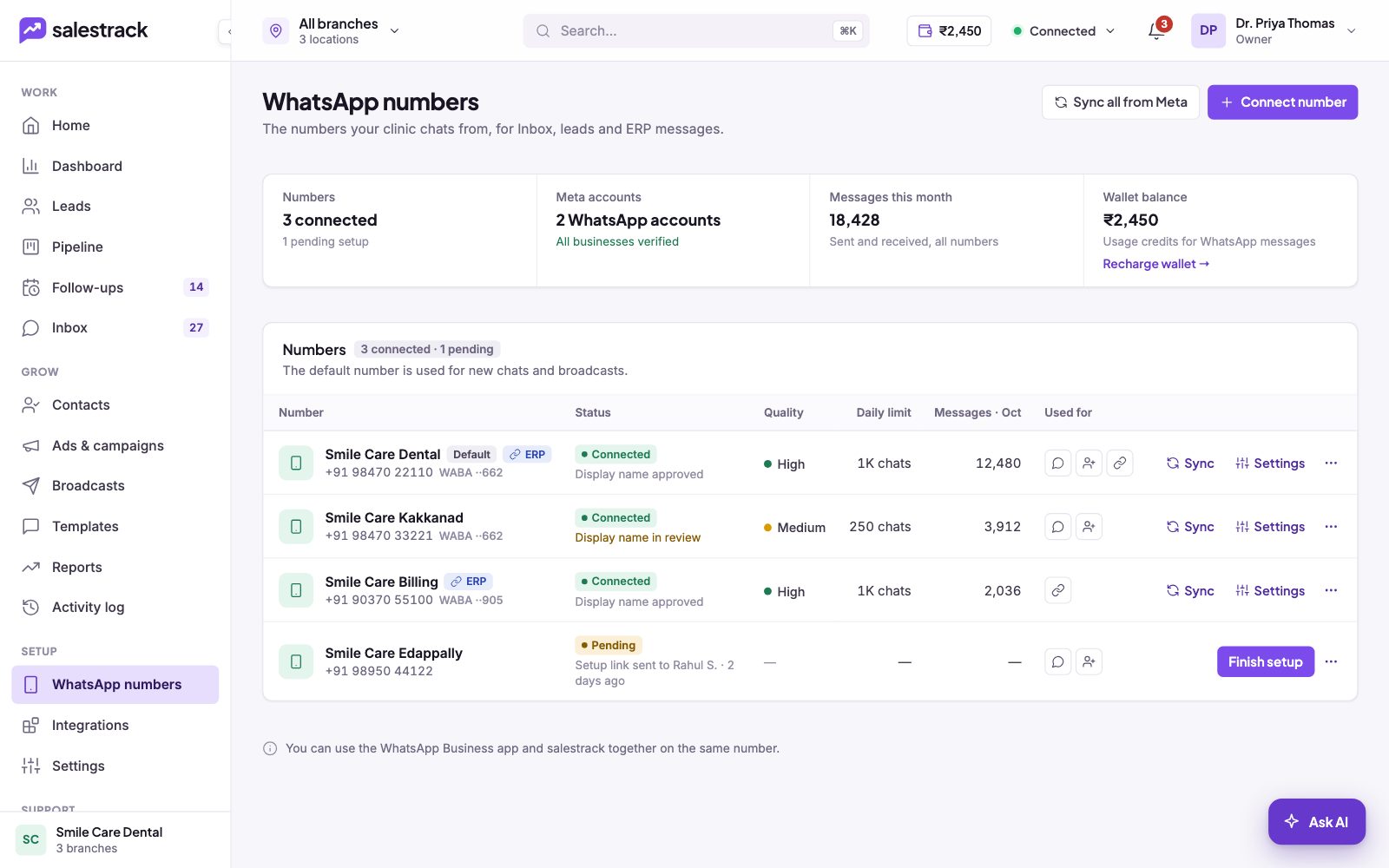
In the left menu, under Setup, click WhatsApp numbers. At the top you see four cards:
- Numbers: how many are connected and how many are still pending setup.
- Meta accounts: how many WhatsApp accounts your numbers sit in, and whether all businesses are verified.
- Messages this month: sent and received, across all numbers.
- Wallet balance: the credit that pays for WhatsApp messages, with a Recharge wallet link.
Read the numbers table
- Number. The display name, phone number and the WhatsApp account it belongs to. A Default badge marks the number used for new chats and broadcasts. An ERP badge marks numbers that send messages from Dentobees ERP.
- Status. Connected means the number is live. Under it you see whether Meta has approved the display name or still has it in review. Pending means setup is not finished, and shows who the setup link was sent to and when.
- Quality. Meta's rating of the number, such as High or Medium. It is based on how customers react to your messages, for example blocks and reports.
- Daily limit. How many chats the number can start in a day, such as 250 chats or 1K chats. Meta sets this limit and raises it as your number builds a good record.
- Messages. Messages sent and received this month on that number.
- Used for. Icons show what the number is used for, such as chats in the Inbox or ERP messages.
Actions
- Sync one number. Click Sync on a row to fetch its latest details from Meta.
- Sync everything. Click Sync all from Meta at the top to refresh every number at once.
- Change a number's settings. Click Settings on the row.
- Finish a pending number. Click Finish setup to complete the Meta steps yourself if the person you sent the link to has not done it.
- Add another number. Click Connect number. Each number can sit in a different WhatsApp account, so Meta details are shown per number.
If something goes wrong
- Details look out of date. Click Sync on the row, or Sync all from Meta.
- The connection status in the top bar is red. Click it to see which number or lead source has a problem, then open that row here.
- Display name stays in review. Meta reviews every display name, and the number keeps working while it is in review. Click Sync to check for an update. If it takes many days, contact us.
Still stuck? Message us on WhatsApp at +91 80860 14345 or email harshad@dentobees.com.
Read next
Still stuck? Ask us on WhatsApp.Real people reply Monday to Saturday, 9 am to 9 pm IST. Tell us what you were trying to do and we will send the answer or the right guide.Message supportEmail us