A template is a message that Meta has approved in advance. You need one to start a conversation, to message someone after the 24-hour chat window has closed, and to send any broadcast. salestrack walks you through the template in three steps and checks it against Meta's rules before you submit, so it has a good chance of being approved the first time.
Before you start
- Connect at least one WhatsApp number. Templates live in each number's WhatsApp account, so you pick the number when you create one.
- You need access to Broadcasts & templates. By default Owner, Admin and Manager have it.
- Decide the category. Marketing is for offers, invites and promotions. Utility is for updates about something the customer already asked for, like a reminder or an invoice. Authentication is for one-time codes.
Steps
- Open Templates. In the left menu, under Grow, click Templates, then New template.
- Fill in Setup. Choose the Category, type a Template name (lowercase letters, numbers and underscores, for example
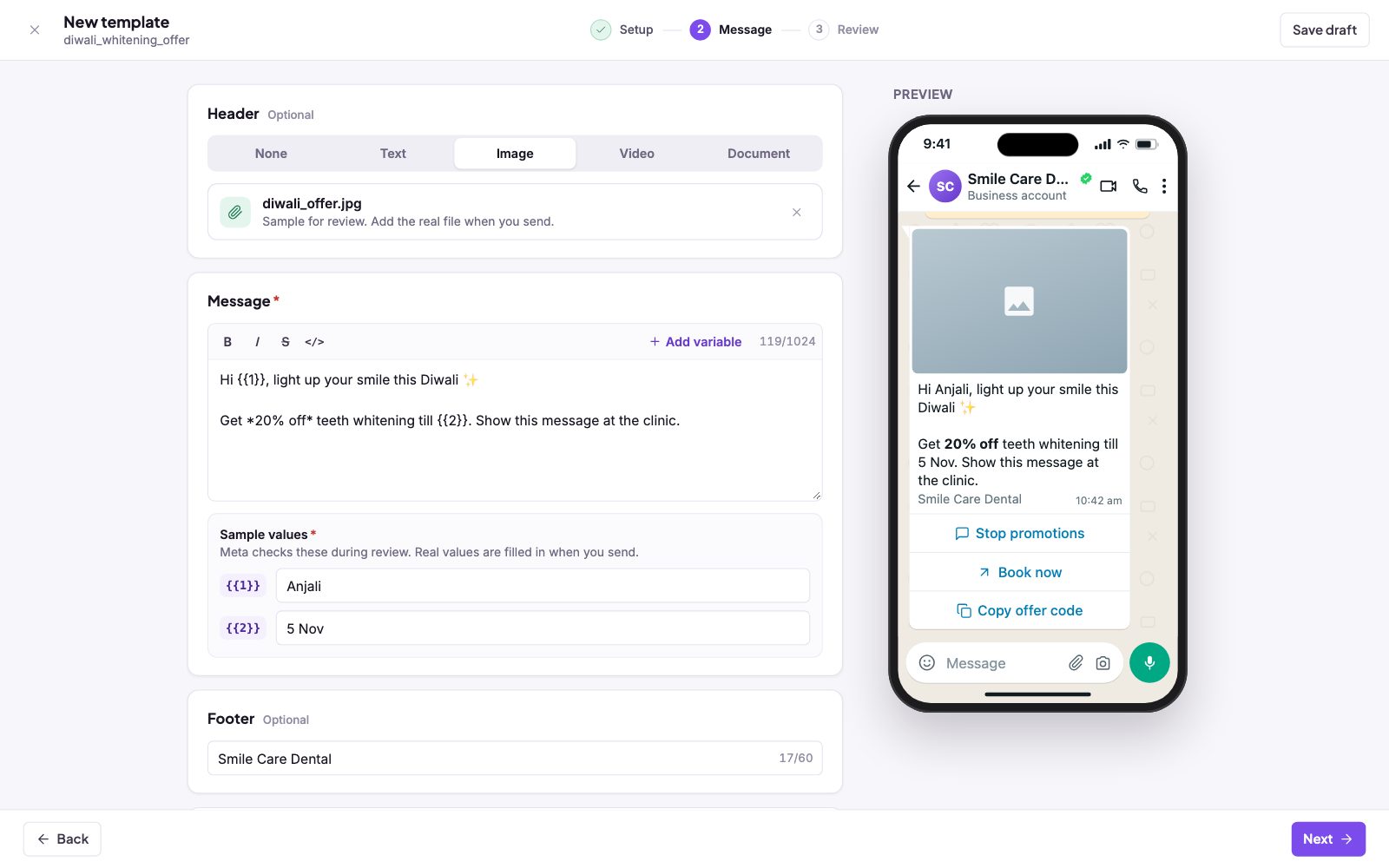
diwali_whitening_offer), pick the Language and the WhatsApp number. Click Next. - Add a header if you want one. Under Header, choose None, Text, Image, Video or Document. For media, upload a sample file. It is only for Meta's review; you add the real file when you send.
- Write the message. Type your text in Message (up to 1,024 characters). Use the B, I, S and code buttons for formatting. Click Add variable to insert a placeholder like {{1}} for the customer's name.
- Give every variable a sample value. Under Sample values, type a realistic example for each variable, such as a first name or a date. Meta checks these during review. Real values are filled in when you send.
- Add a footer and buttons (optional). The Footer takes up to 60 characters. Under Buttons you can add up to 10: quick replies, and calls to action (website up to 2, phone 1, offer code 1). For marketing templates, tick Add "Stop promotions" so people can opt out. Meta recommends it.
- Check the preview, then review. The phone preview on the right shows the message with your sample values. Click Next.
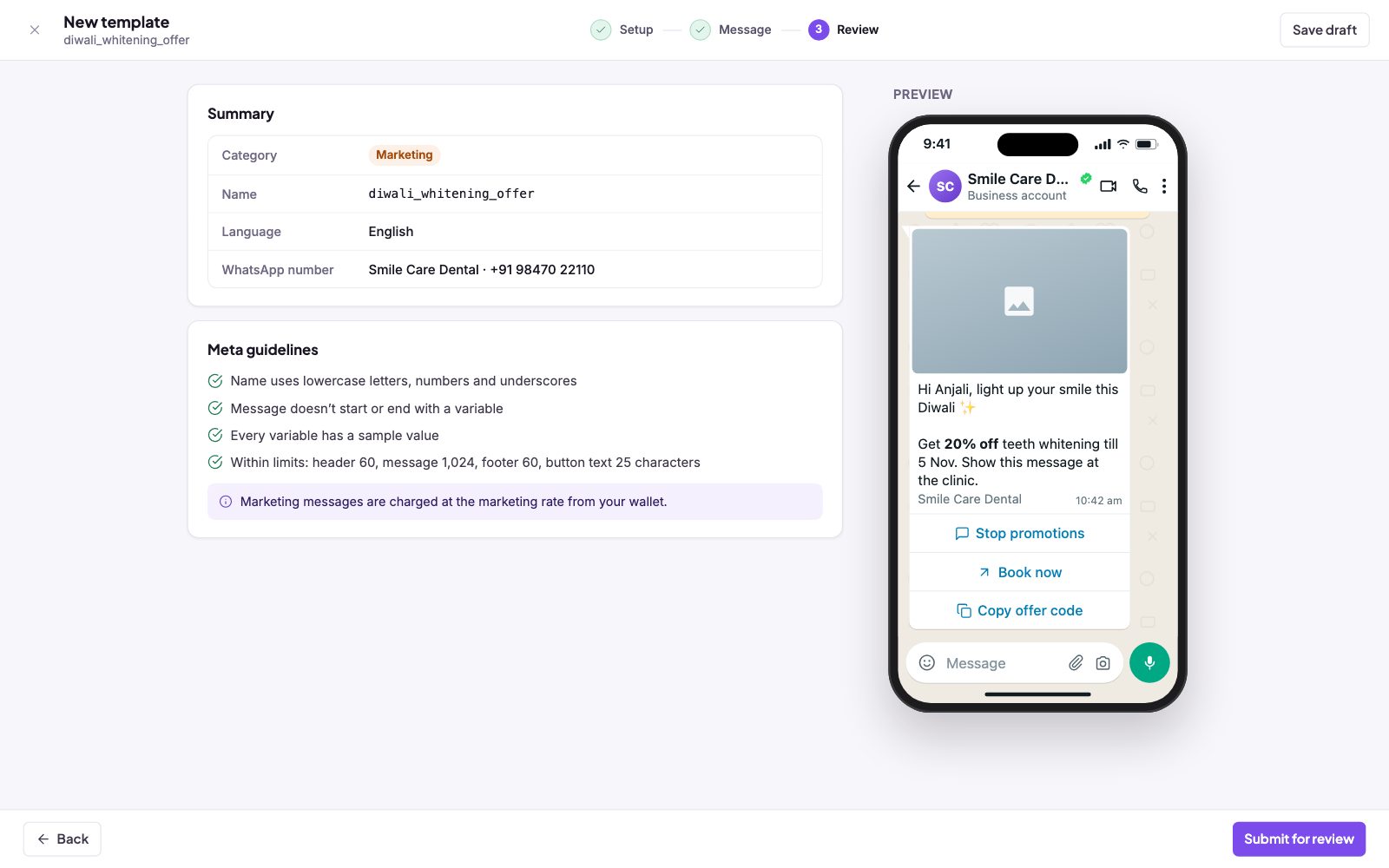
- Submit. On the Review step, check the Summary and the Meta guidelines list, then click Submit for review.
What the guideline checks mean
- Name uses lowercase letters, numbers and underscores. No spaces or capital letters.
- Message doesn't start or end with a variable. Put some fixed words before the first variable and after the last one.
- Every variable has a sample value. Empty samples are a common reason for rejection.
- Within limits. Header 60, message 1,024, footer 60 and button text 25 characters.
After you submit
The template shows In review on the Templates page. When Meta decides, the status changes to Approved or Rejected, and you get a notification. Click Sync with Meta if you want to refresh the statuses straight away.
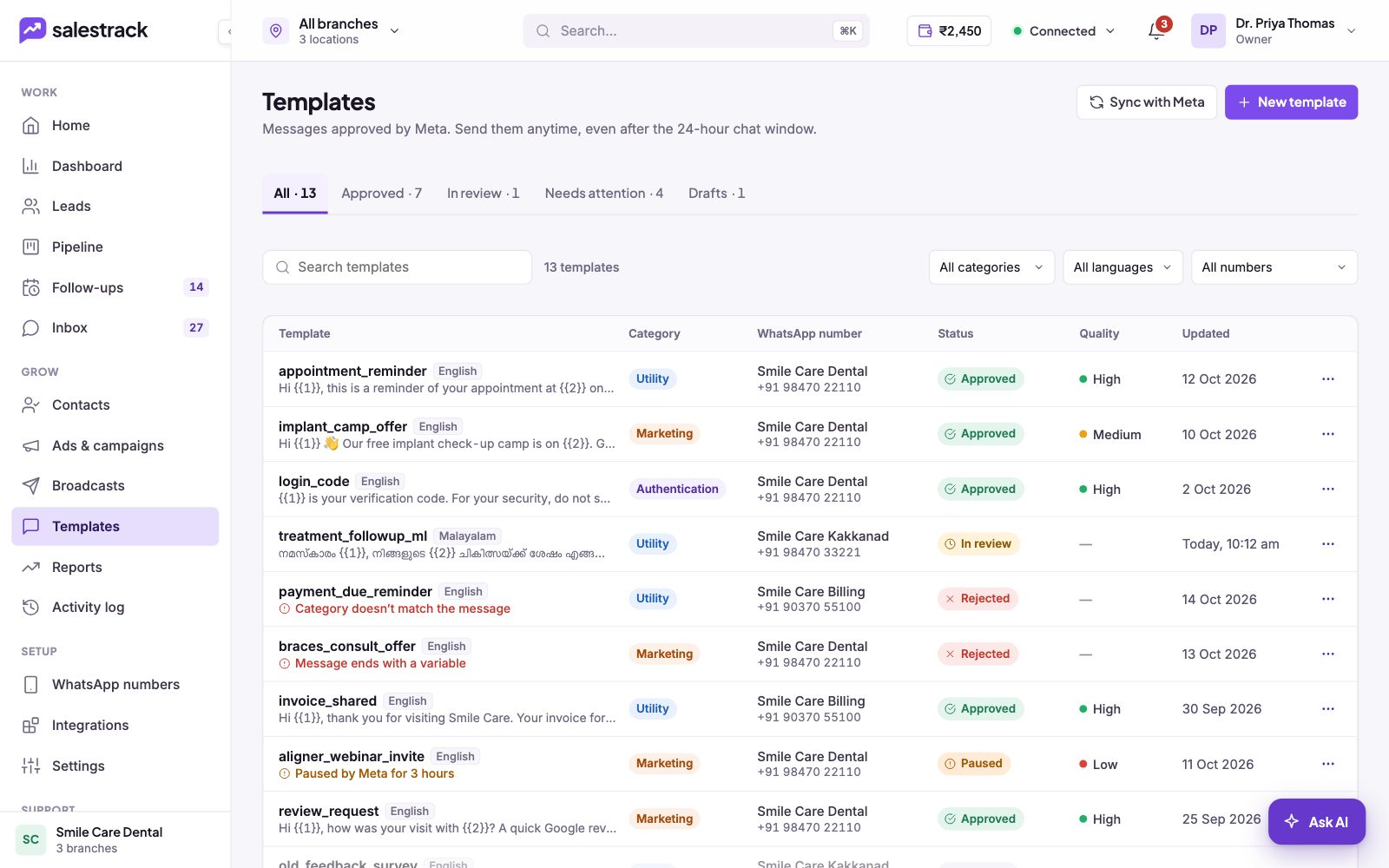
If your template is rejected, see Why was my template rejected?
Read next
Still stuck? Ask us on WhatsApp.Real people reply Monday to Saturday, 9 am to 9 pm IST. Tell us what you were trying to do and we will send the answer or the right guide.Message supportEmail us