A broadcast sends one approved WhatsApp template to many people at once, from your own business number. salestrack shows you exactly who will get it and what it will cost before anything is sent, and keeps a report of who read, replied and clicked.
Before you start
- An approved template on the number you will send from. See Create a WhatsApp template that gets approved.
- An audience: a list or segment in Contacts, or a CSV file with names and phone numbers.
- Enough money in your wallet. You will see the estimated cost before you send.
- Only send to people who have agreed to hear from you on WhatsApp. Messages to people who did not opt in get blocked and reported, which hurts your number's quality.
Step 1: Audience
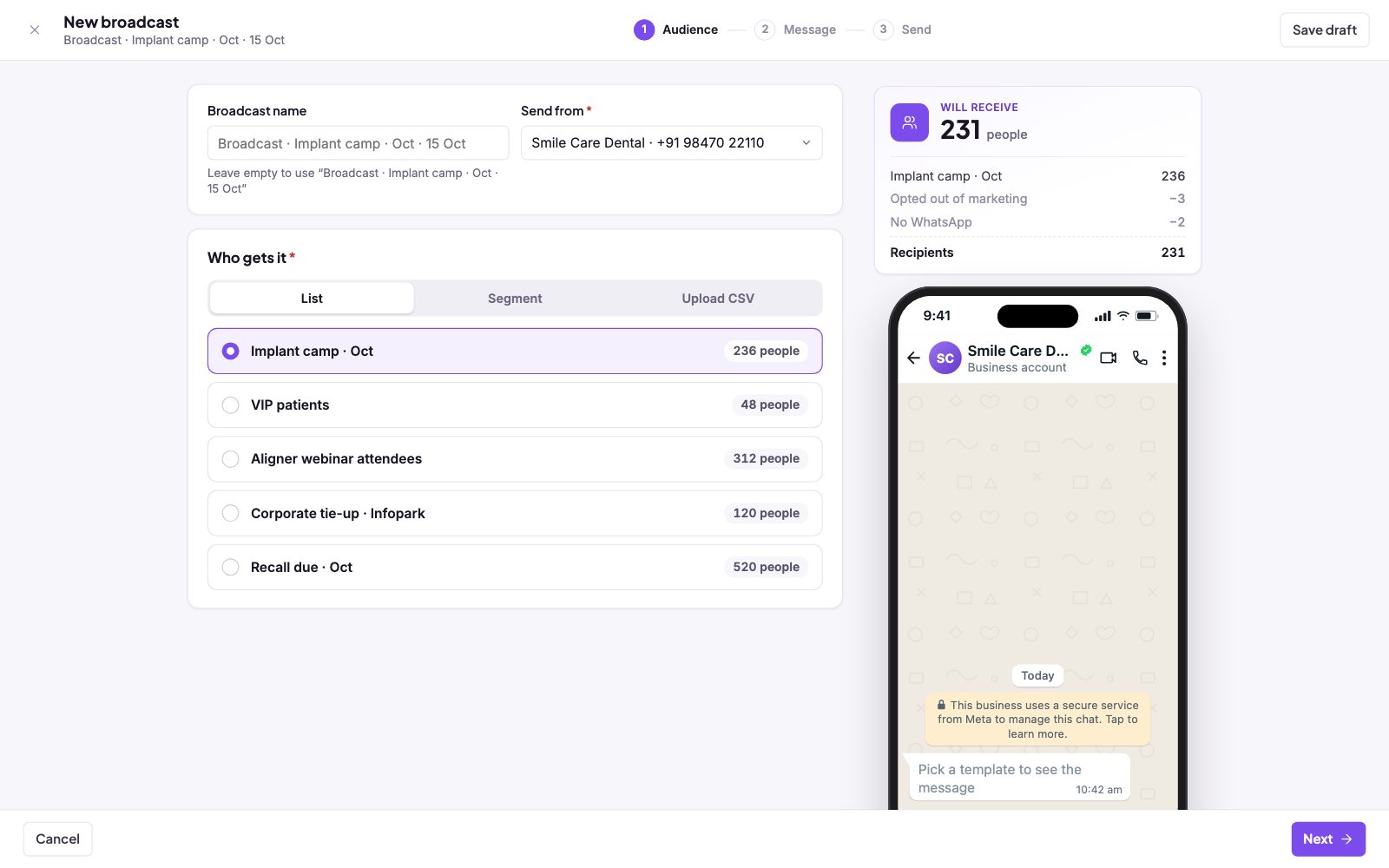
- Start a new broadcast. In the left menu, under Grow, click Broadcasts, then New broadcast.
- Name it (optional). Type a Broadcast name, or leave it empty to use the suggested name.
- Choose the number. In Send from, pick the WhatsApp number to send from.
- Choose who gets it. Under Who gets it, pick List, Segment or Upload CSV, then select the group. If you upload a CSV, tick "Add them to Leads" if you want them on the Leads page; otherwise they are saved only in Contacts.
- Check the count. The Will receive box shows the audience size, minus people who opted out of marketing and numbers without WhatsApp. Click Next.
Step 2: Message
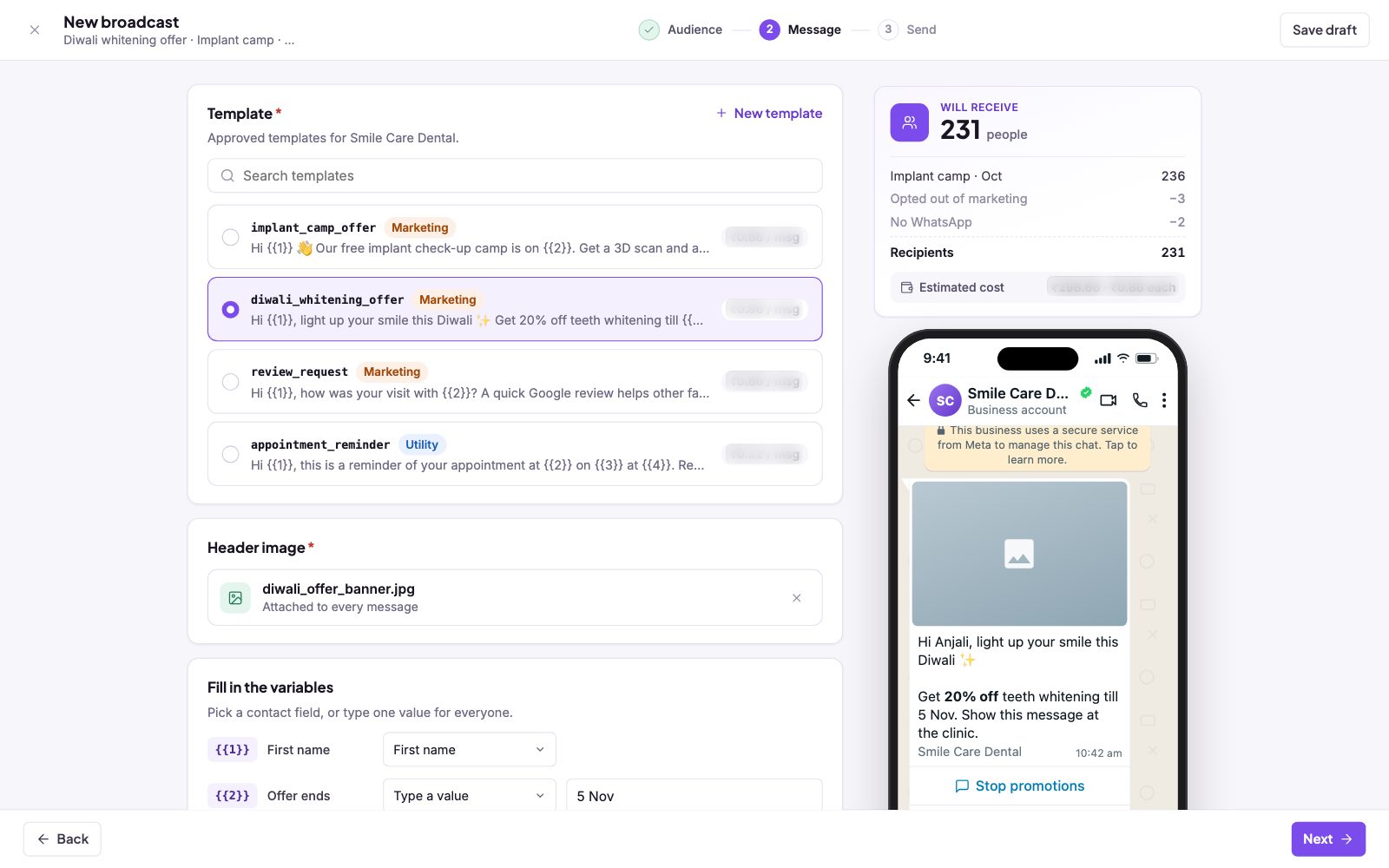
- Pick a template. Under Template, choose one of the approved templates for that number. Each shows its category and cost per message. Need a new one? Click New template.
- Add the header file. If the template has an image, video or document header, upload the real file. It is attached to every message.
- Fill in the variables. For each variable, pick a contact field (such as First name, Full name, Branch) or choose Type a value to use the same text for everyone.
- Check the preview. The phone preview shows the message as one person will see it. Click Next.
Step 3: When and cost
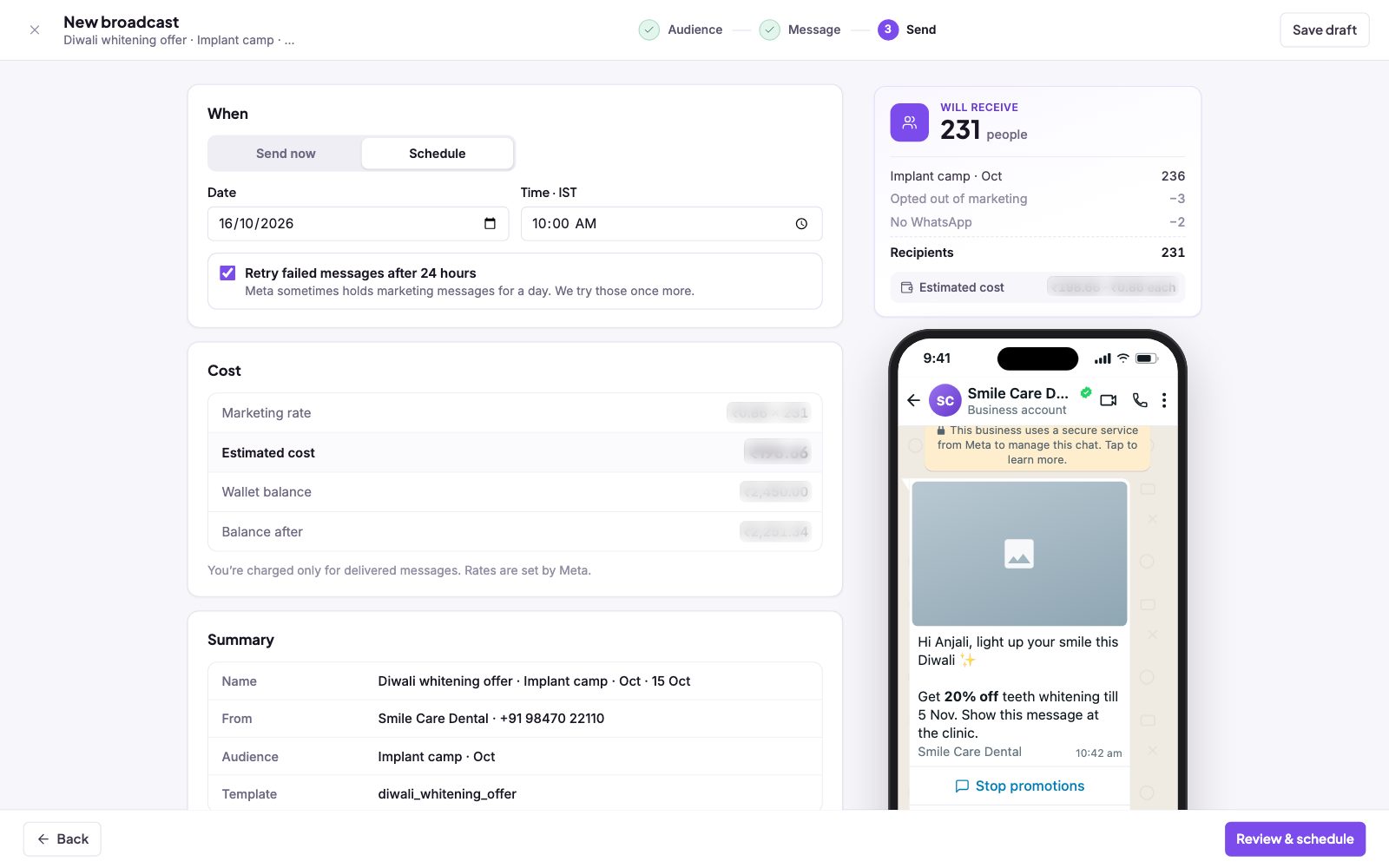
- Choose when. Under When, pick Send now, or Schedule and set the Date and Time · IST.
- Keep auto-retry on. Leave Retry failed messages after 24 hours ticked. Meta sometimes holds marketing messages for a day, and salestrack tries those once more.
- Check the cost. The Cost box shows the rate times the number of recipients, the Estimated cost, your Wallet balance and the Balance after.
- Review and send. Check the Summary, click Review & schedule, tick "I've checked the message and the audience" and confirm.
After you send
The broadcast shows Sending with a progress bar, then Sent. A scheduled broadcast shows Scheduled; you can still edit it, cancel it or send it now. Click any sent broadcast to open its report. See Read a broadcast report and retry failed messages.
Read next
Still stuck? Ask us on WhatsApp.Real people reply Monday to Saturday, 9 am to 9 pm IST. Tell us what you were trying to do and we will send the answer or the right guide.Message supportEmail us