Meta reviews every template before you can use it. When a template is rejected, salestrack shows Meta's reason right under the template name, so you know what to change. This guide helps you find the reason, fix it and send the template back for review.
Find the reason
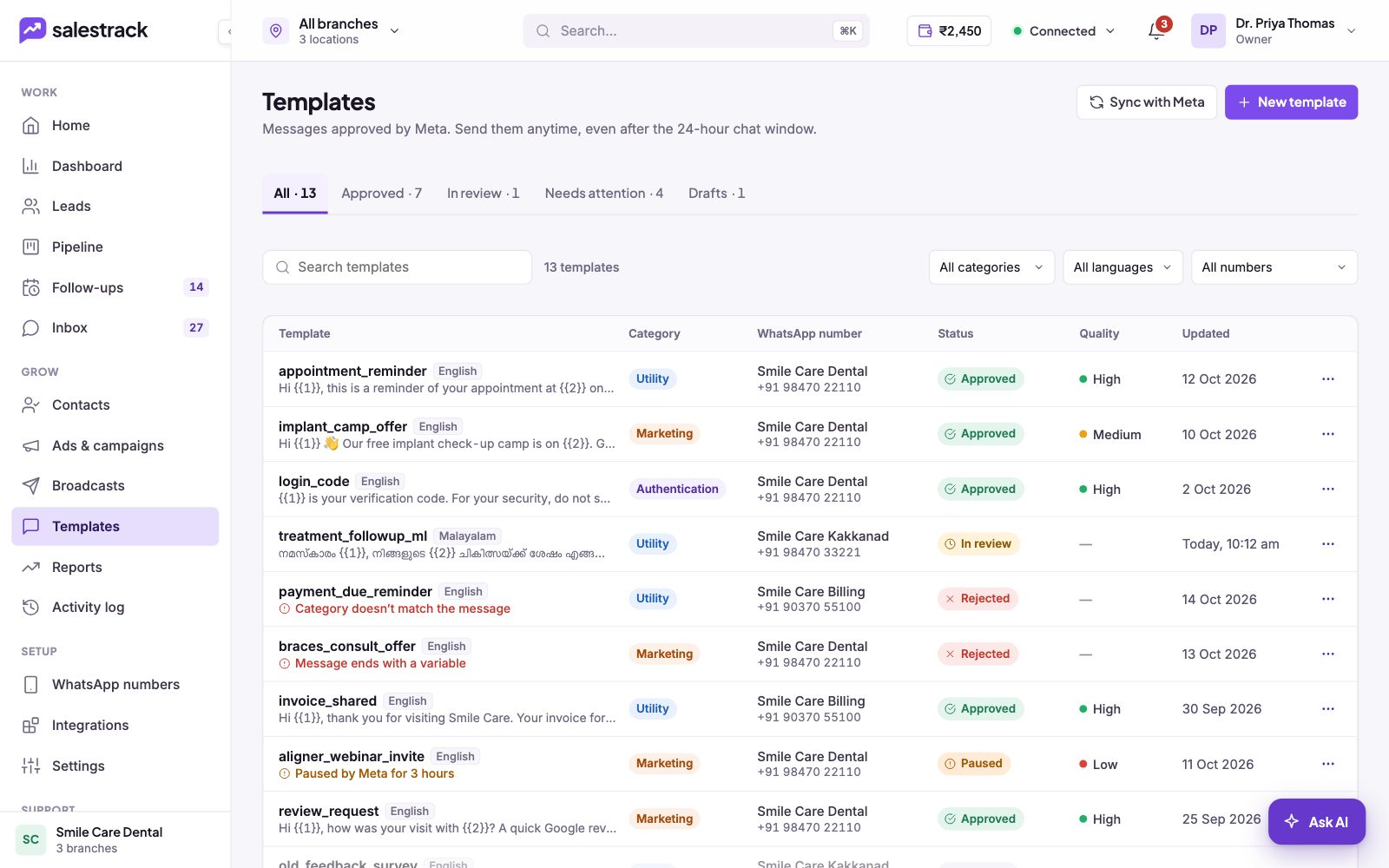
- Open Templates. In the left menu, under Grow, click Templates.
- Open Needs attention. Click the Needs attention tab. It collects every template that is Rejected, Paused or Disabled.
- Read the reason. The reason is shown in red under the template name, for example "Category doesn't match the message" or "Message ends with a variable".
- Open the template. Click the row to open the preview. A rejected template shows the reason and an Edit and resubmit button.
Common reasons and how to fix them
Category doesn't match the message
The words do not fit the category you chose. A message with an offer, discount or invite is Marketing, even if you picked Utility. Change the category to Marketing, or rewrite the message so it is only an update about something the customer already asked for.
Message starts or ends with a variable
Meta does not allow a message that begins or ends with a placeholder like {{1}}. Add fixed words before the first variable and after the last one, for example "Hi {{1}}, …" and finish with a full sentence.
A variable has no sample value
Every variable needs a realistic sample in Sample values. Use a real-looking name or date, not "test" or "xyz".
Too long
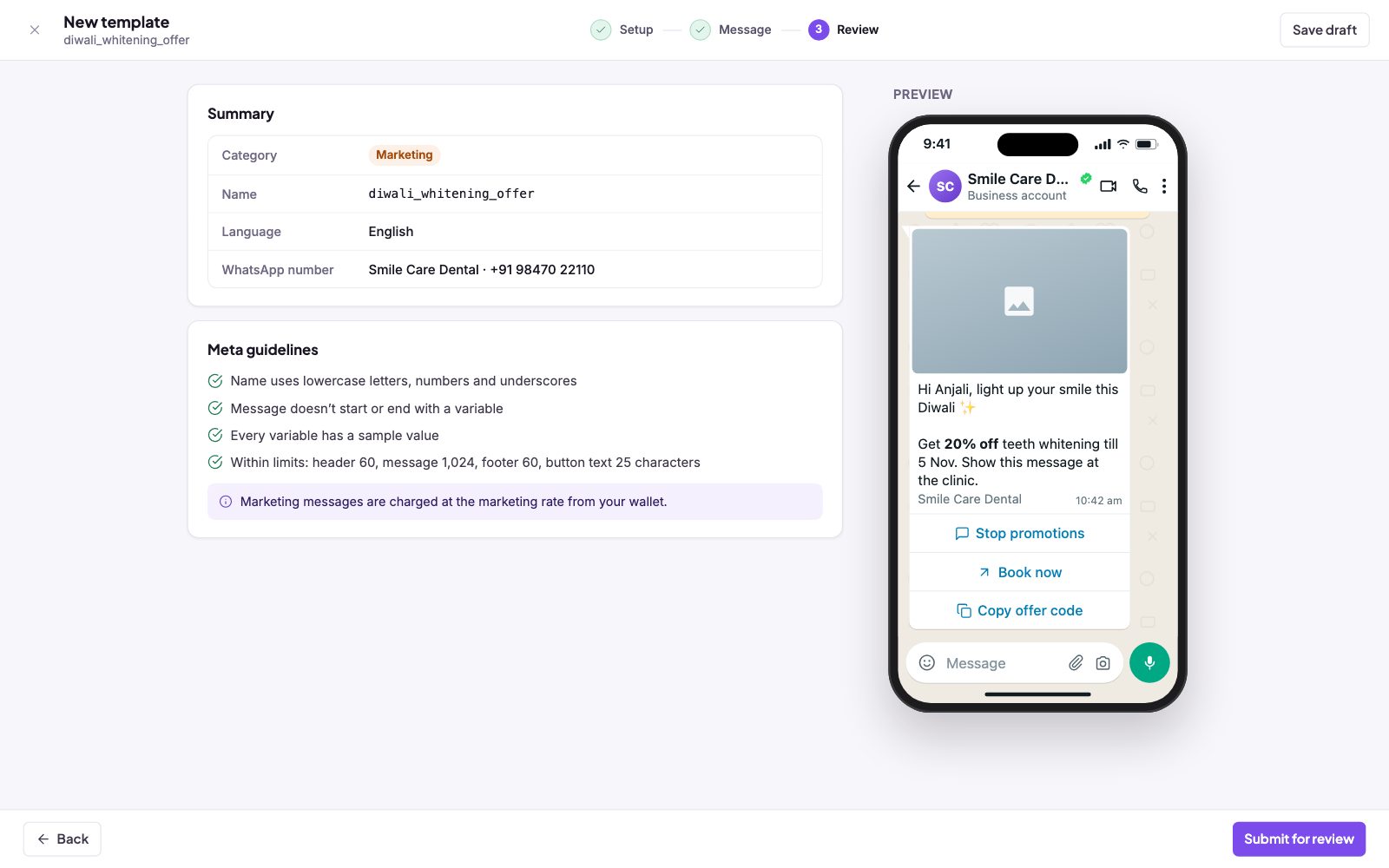
Limits are header 60, message 1,024, footer 60 and button text 25 characters. The counters in the editor show how much space is left.
Fix and resubmit
- Click Edit and resubmit. The template opens in the editor with your earlier content.
- Make the change. Fix the part that the reason points to. Keep an eye on the phone preview.
- Check the guidelines. On the Review step, every item under Meta guidelines should have a green tick.
- Submit. Click Submit for review. The status goes back to In review.
Paused or Disabled templates
These are not rejections. They happen after a template is approved and in use.
- Paused. Meta has stopped the template for a while. The screen shows how long, for example "Paused by Meta for 3 hours". Wait for it to clear before you use it again.
- Disabled. Meta has turned the template off, for example "Disabled after repeated low quality". Create a new, improved template instead.