Cost per lead only tells half the story. A cheap lead that never buys is expensive. The Marketing ROI report follows your spend all the way to paying customers and revenue, so you can see which channel really pays back.
Open the report
- Open Reports. In the left menu, under Grow, click Reports, then the Marketing and ROI tab.
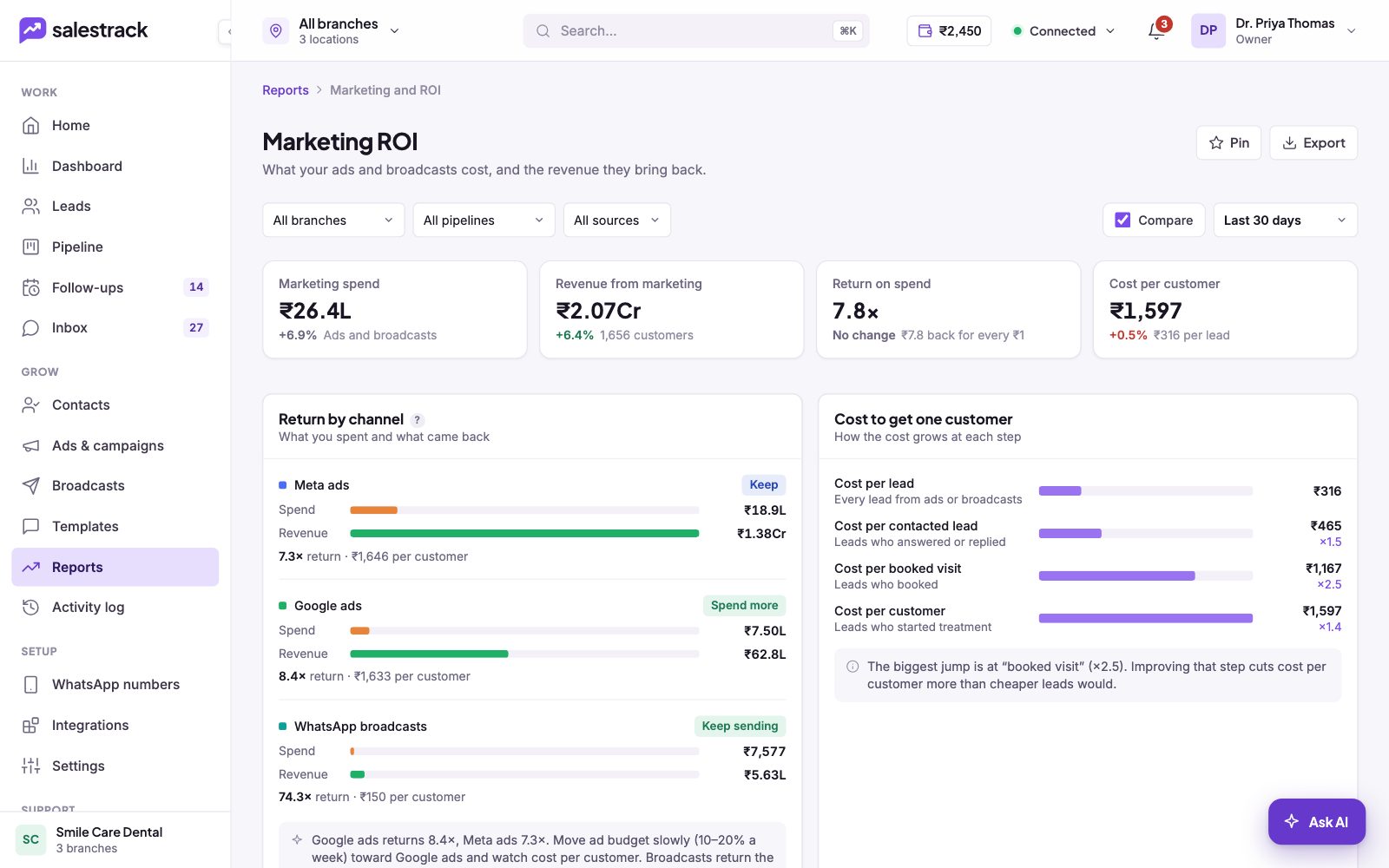
- Click Marketing ROI. The report opens with four number cards at the top.
- Set the filters. Choose branch, pipeline and source, and a date range. Tick Compare to see the change from the previous period.
The four numbers
- Marketing spend. What you spent on ads and broadcasts in the chosen dates.
- Revenue from marketing. Revenue from customers who came through ads and broadcasts, and how many customers that is.
- Return on spend. Revenue divided by spend. The card says it in words, for example how much came back for every rupee spent.
- Cost per customer. Spend divided by the number of new customers, with cost per lead shown underneath.
Return by channel
This panel compares Meta ads, Google ads and WhatsApp broadcasts side by side: spend, revenue, return and cost per customer. Each channel gets a simple tag such as Keep, Spend more or Keep sending, and a short note below suggests what to do. Treat the note as a starting point and move budget in small steps.
Cost to get one customer
This ladder shows how the cost grows at each step: cost per lead, cost per contacted lead, cost per booked visit and cost per customer. The ×1.5, ×2.5 figures show how much the cost jumps from one step to the next.
Spend and return by branch
Many campaigns target all your branches at once. This section shows each branch's Direct spend (from campaigns linked to that branch), Shared spend, total spend, revenue, return and cost per customer.
- Choose how to split shared spend. Under Split shared spend, pick By leads, By revenue or Don't split.
- Link campaigns to branches. Click Campaign branches to set which branch a campaign belongs to. The line above the table shows how many campaigns are linked.
Revenue is counted where the work was done. The note below the table repeats the split you chose.
By campaign, and charts
The chart shows return on spend per day or week. Switch it to Spend and revenue or Cost per customer. The table at the bottom lists every campaign with spend, leads, cost per lead, customers, cost per customer, revenue and return on spend. Switch the breakdown to Treatment or Branch, and sort by any column.